Listing Events
Copying Events
We know that a lot of events that organisers create are repetitive. For example, running the same workshop on different dates, or a course that repeats but with slightly different content.
To help, DanceCloud makes it easy to copy an event you've already listed to a new date. You can then publish it without making any changes, or adjust the content before publishing.
There are several different places from which you can copy an event. We'll cover them all in this chapter.
Handling registrations on DanceCloud?
When you copy an event you've previously held, we'll also copy all the registration settings. Meaning all the ticket types, optional extras, and discounts you previously created are copied to the new date.
New Event Workflow
You can copy an event from the first step of the new event workflow. Choose Copy Event:
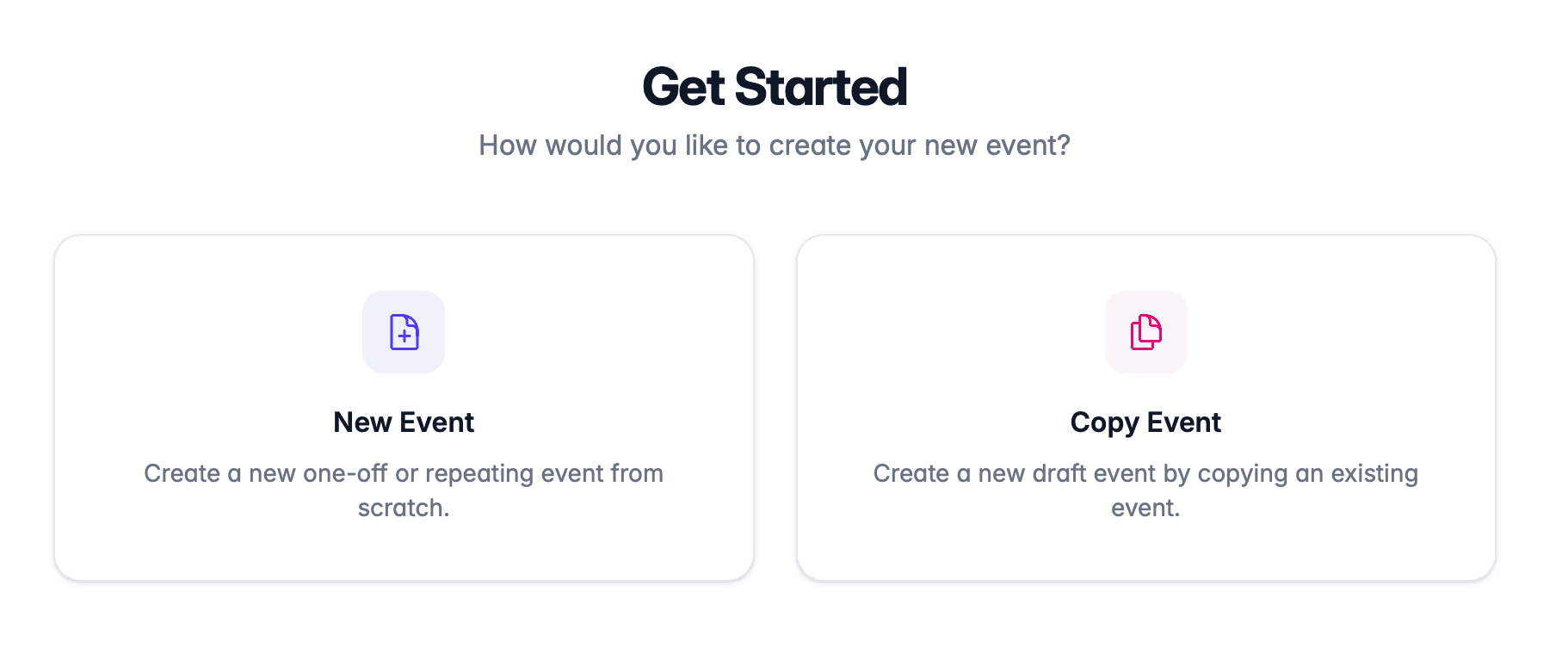
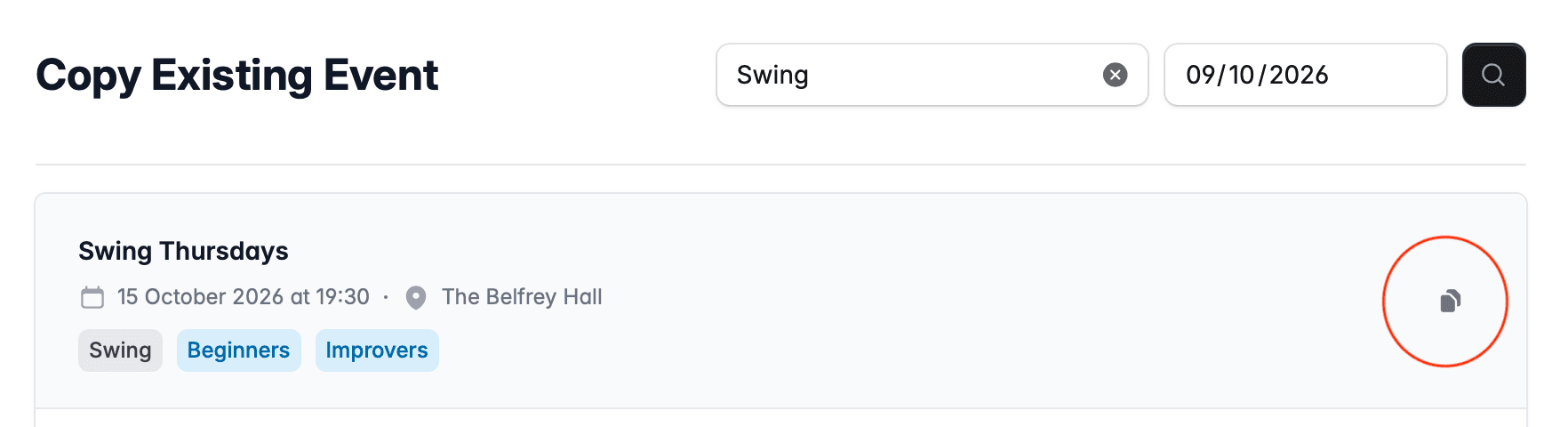
You'll be taken to a page where you can search for the event to copy. Either use the title, and/or enter a date, then click the search button. When entering a date, events will be listed that are on or after the supplied date.
In the search results, each row has a copy icon on the right hand side. Click that to copy the selected event:
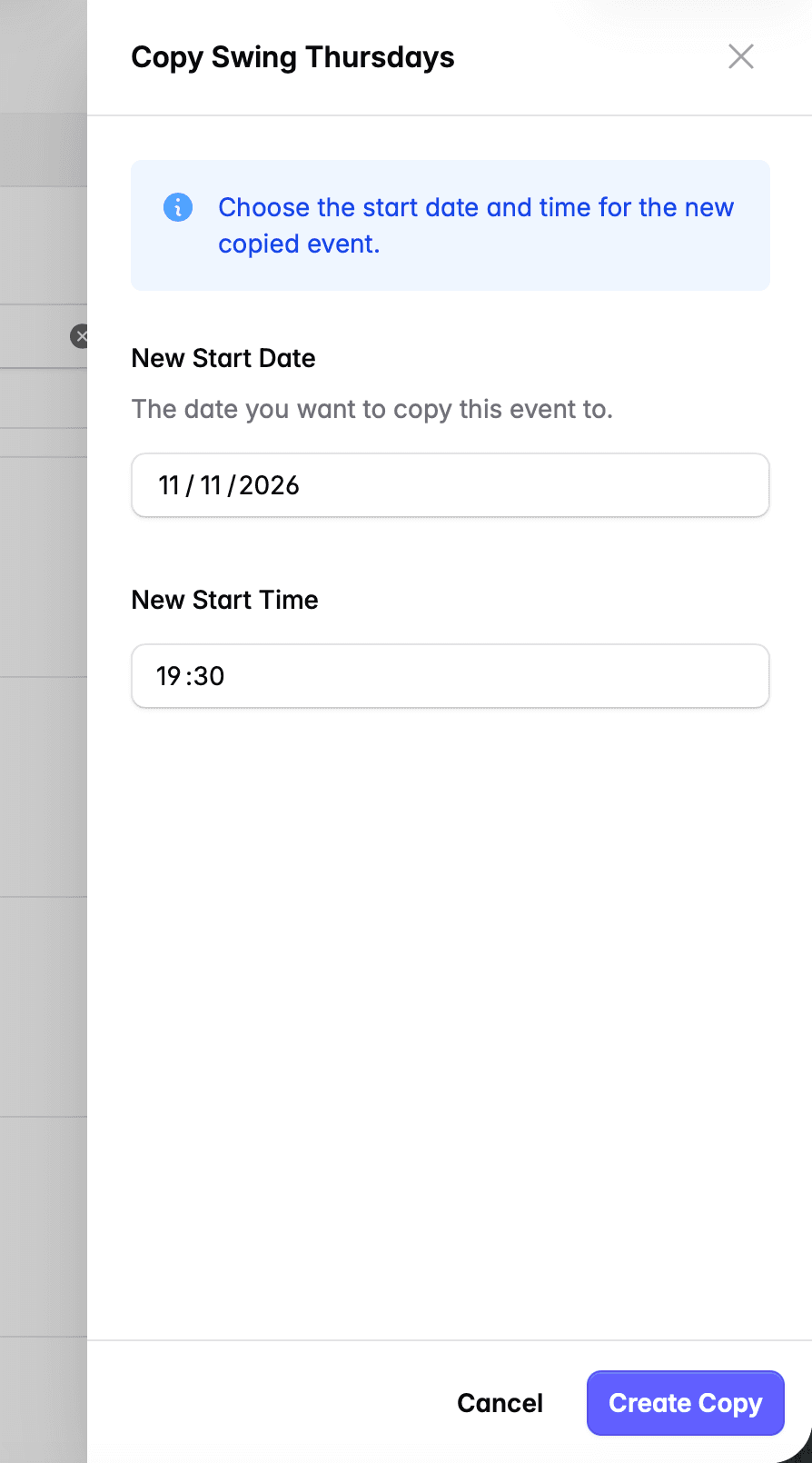
This will open a drawer where you can enter the new start date and time to copy the event to:
Published Event
You can also copy a published event when viewing it within the management application.
Choose the Settings tab. Then click the copy button:
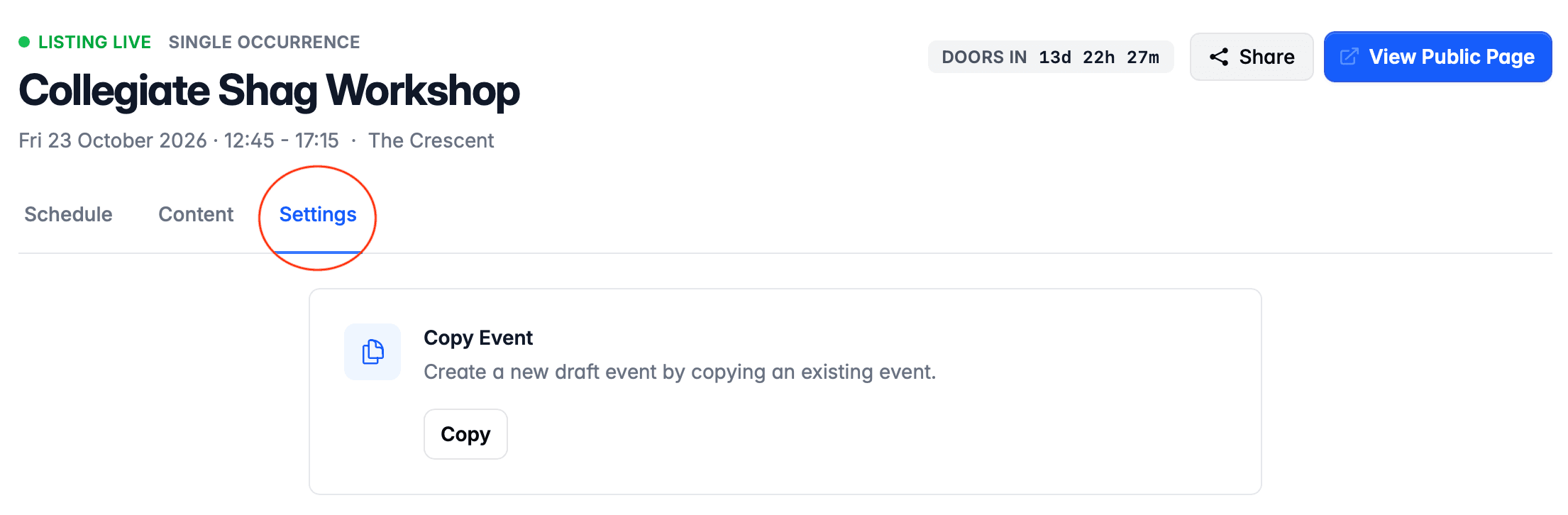
This will open the same drawer as above, where you can enter the new start date and time to copy the event to.
Recurring Events
If you want to create a new recurring event from an existing one, use either of the methods above to copy the latest occurrence of the event.
After copying, you'll be taken to the event info step for the copy. Here, you can complete the recurring event information as described in the Event Info & Recurrence chapter.