Ticketing & Registrations
Ticket Types
In this chapter, we'll cover creating ticket types at your event. These are the ticketing options that customers can choose from when booking for your event, and they determine how much the customer pays.
Ticket Types Page
Draft Events
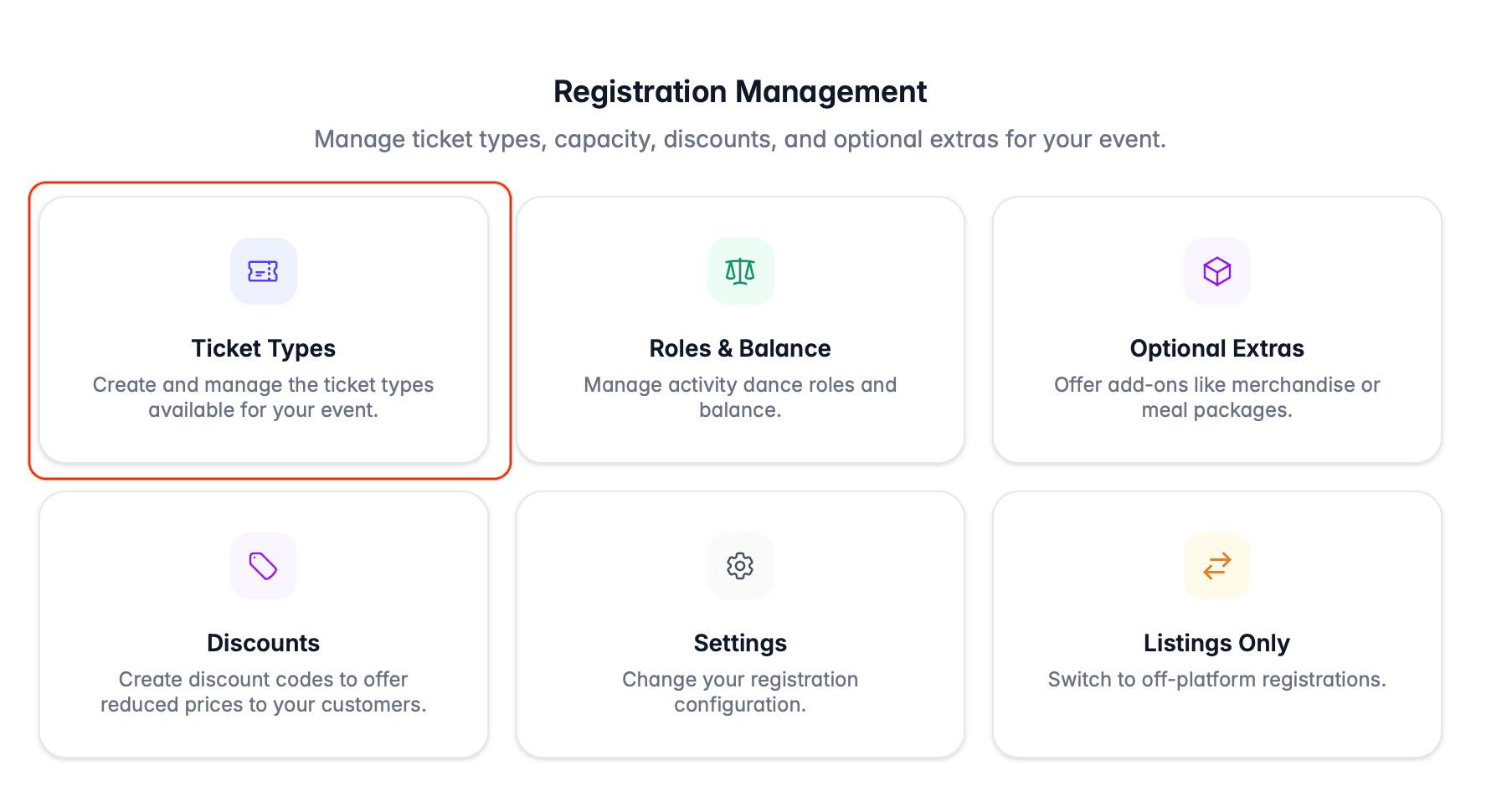
On the Registrations step of the draft event workflow, choose Ticket Types after submitting your registration settings:
Published Events
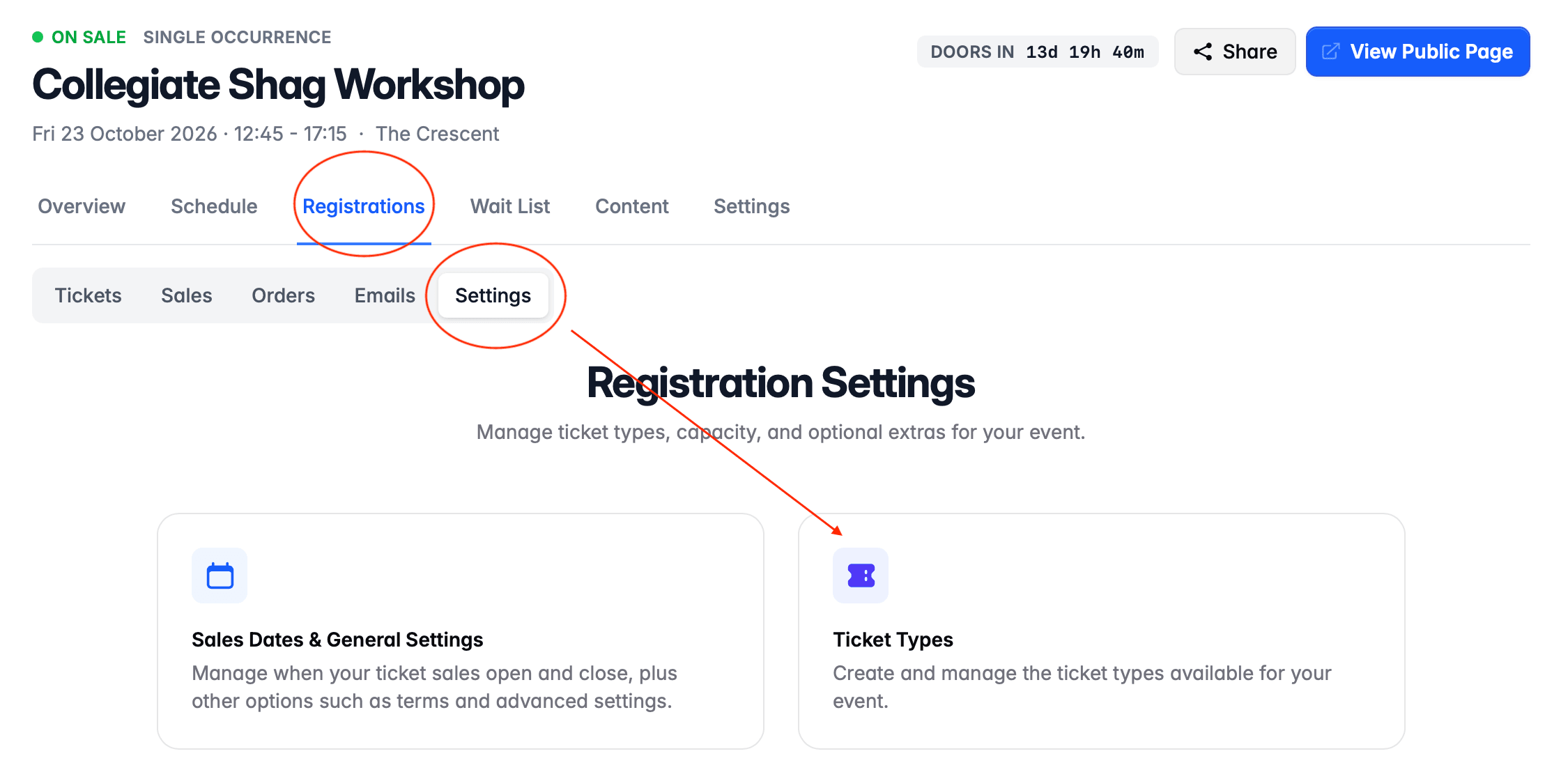
To access the ticket types page on a published event, choose Registrations, then Settings. Then select Ticket Types:
Ticketing and the Schedule
In DanceCloud, each ticket type you create determines the activities in the event schedule that the customer is admitted to when they buy a ticket of that type. This allows DanceCloud to manage the capacity and lead/follow balance at each activity.
For example, an event that has a lesson followed by a social dance. When creating ticket types, DanceCloud needs to understand whether the ticket type admits the customer to just the lesson, just the social dance, or both.
Ensure that you've created all the activities at your event before you start creating ticket types.
Creating Ticket Types
On the Ticket Types page, use the Add Ticket Type button to create your first ticket type.
Ticket Type Entry
If your event has multiple activities in its schedule, you will first need to choose the type of ticket that you want to create. The ticket type determines which activities customers purchasing the ticket will be admitted to.
The available types are:
- Whole Event: admits the customer to every activity at your event.
- Lessons Only: admits the customer to all lessons at your event.
- Dancing Only: admits the customer to all social dances at your event.
- Custom Entry: grants access to specific activities that you choose when creating the ticket type.
In this example, there is the choice between Lessons Only or Custom Entry:
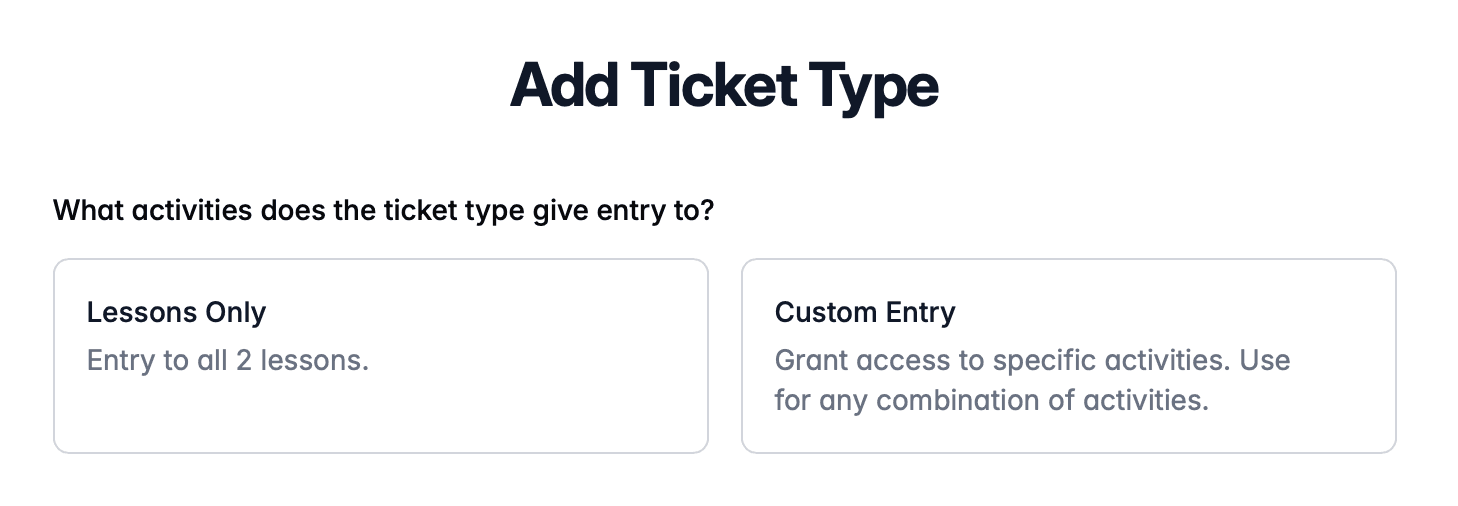
Select the type that accurately reflects which activities customers will be admitted to if they purchase this ticket. If you chose Custom Entry, you will need to select the activities in the schedule that the customer will be admitted to.
Ensure the schedule is correct for the ticket type you want to create before proceeding.
Display Name
Enter the name for the ticket type that you want to display to customers. For example, Workshop Pass, Social Pass, etc.
Add DanceCloud Fee
Use this toggle to determine whether the ticket fee is included in the price of the ticket, or added on top. When the toggle is enabled, the fee will be added on top.
For example, given a ticket that costs £20. The fee in this scenario is £1.
If the fee is included in the price, the customer will be charged £20 and the fee will be deducted - meaning you receive £19 per ticket.
If the fee is added to the price, the customer will be charged £21 - meaning you receive £20 once the ticket fee is deducted.
Note that payment processing fees will apply to the whole order, which may contain multiple tickets. There is no way to pass the payment processing fee on to the customer, so it will always be deducted from the payment total.
Pricing
You will need to enter the prices for the ticket in the fields provided. Additionally, you can choose to enable partnered and/or concession prices. Early bird prices can be configured once you've created the ticket type.
When entering prices, you are entering the "final" price to charge, i.e. the highest price. You can add Early Bird prices (i.e. prices less than the final price) once the ticket type is created.
Partnered Pricing
Enable this option if you want to offer a discounted price when a lead and follow book the same ticket at the same time. If you toggle this option on, an additional field will appear for the partnered price.
When entering a partnered price, the price is per person. For example, if you entered a partnered price of £15, then the couple will be charged £30 in total.
DanceCloud automatically discounts its ticket fee on partnered tickets.
Concession Pricing
Enable this option if you want to offer a reduced price for customers that are eligible for concession. For example, you may want to give students, pensioners, or members a reduced price.
When using concession pricing, make sure you enter a description of who is eligible for the concession in the Description field for the ticket type. This will then be shown to customers when booking. You will need to check eligibility when a customer arrives at your event.
Sales Dates
You can set sales open and close dates for this specific ticket type. You do not need to do this if they are the same as the sales open/close dates you set for the whole event in your registration settings.
If you would like to open sales for this ticket type on a specific date and time, use the Set a sales open date? toggle. This will allow you to choose a date and time.
Likewise, if you would like to close sales for this ticket type on a specific date and time, use the Set a sales close date? toggle.
Availability Limit
If you chose to manage capacity on each ticket type, an Availability Limit option will be shown. Enter the maximum number of tickets of this type that can be sold:
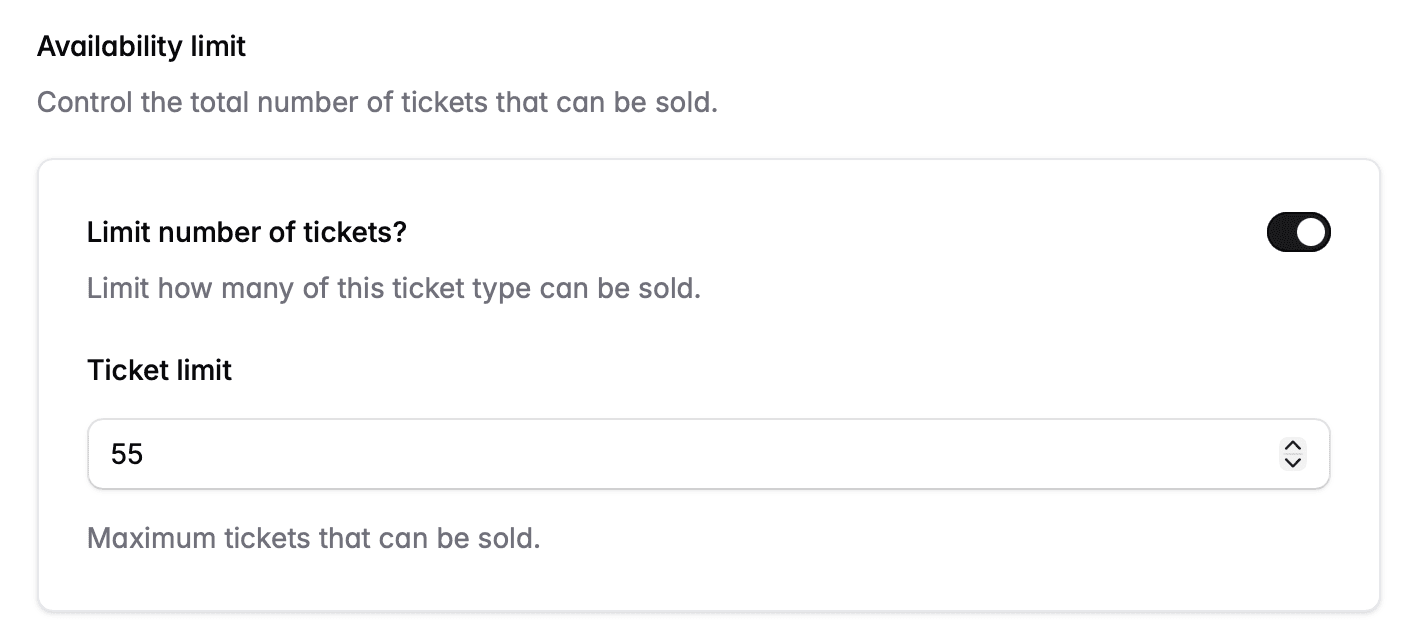
If you want the ticket type to be unlimited, turn the toggle off.
Hiding the Ticket
By default, ticket types will appear in the list of tickets shown to customers in your DanceCloud ticket office.
If you would like to hide a ticket from this list - meaning a customer will not be able to choose it - turn the Available to Purchase toggle off.
If you already have customers on your wait-list who have selected this ticket type, they will still be able to purchase it.
Description
Enter a free-text description of this ticket type that is displayed to customers.
Editing Ticket Types
When you save your new ticket type, it will be created and you will be taken to its detail page. Here you can set things such as Early Bird prices - see below.
Click the Back button to head back to the list of ticket types - from where you can create more ticket types.
To edit an existing ticket type, click on its row in the list. This will take you back to the ticket type detail page.
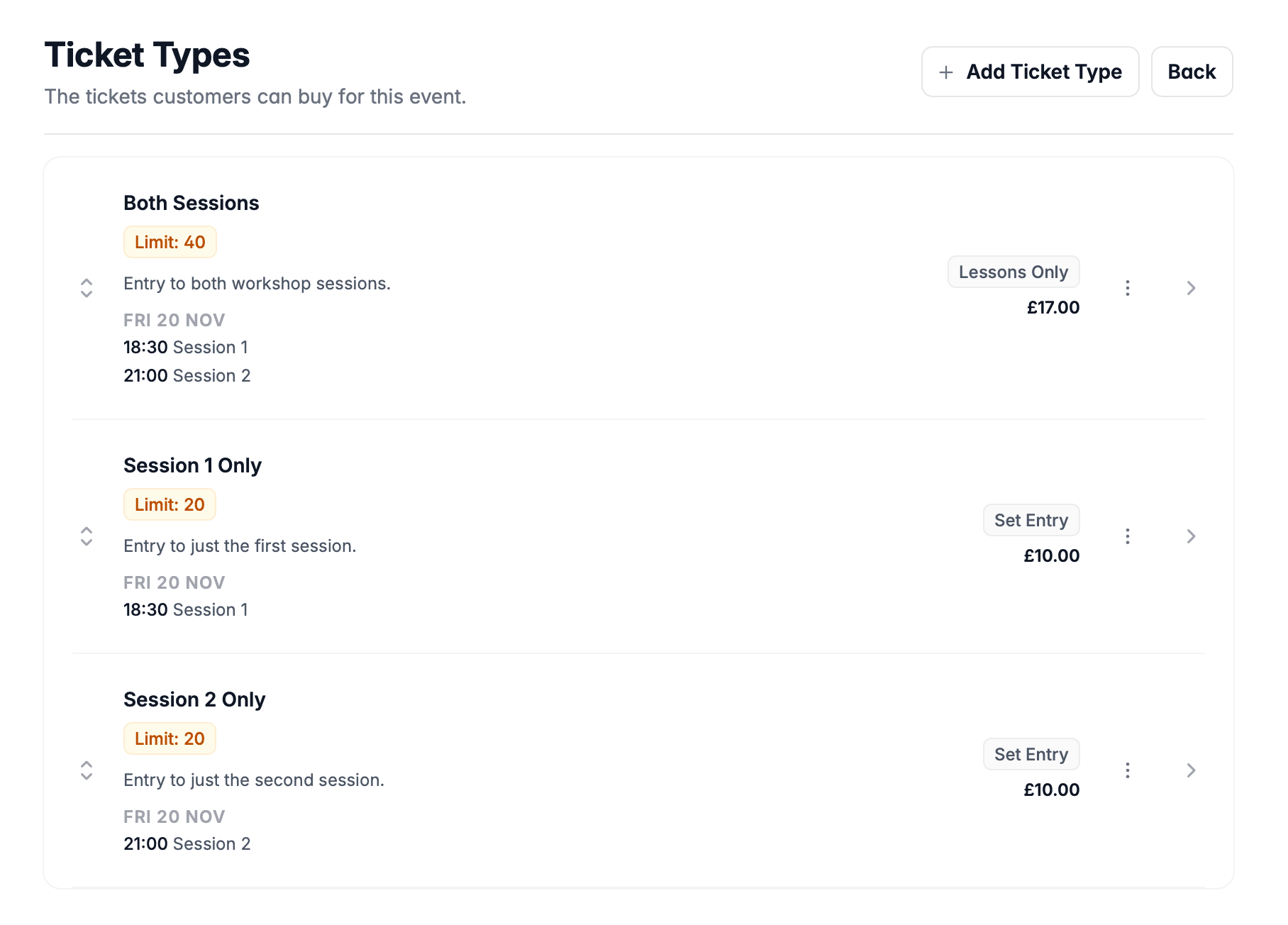
On the list of ticket types you can see exactly what each ticket type admits to:
Reordering Ticket Types
Ticket types will be displayed to customers in the order in which they are shown in this list. To reorder a row, press the arrows icon on the left of the row, and drag and drop the row to its new position.
Editing Details
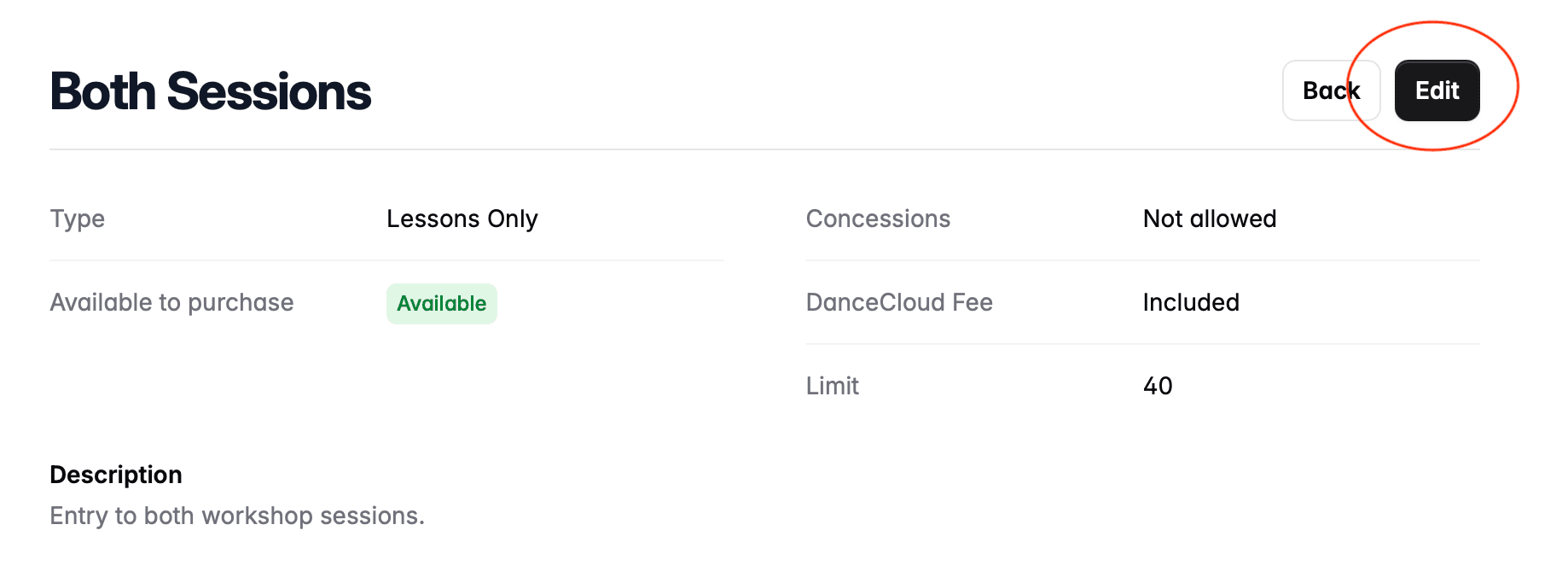
To edit any of the details of the ticket type - for example, whether fees are added, sales dates and the description - use the Edit button when viewing the ticket type:
Changing the Final Price
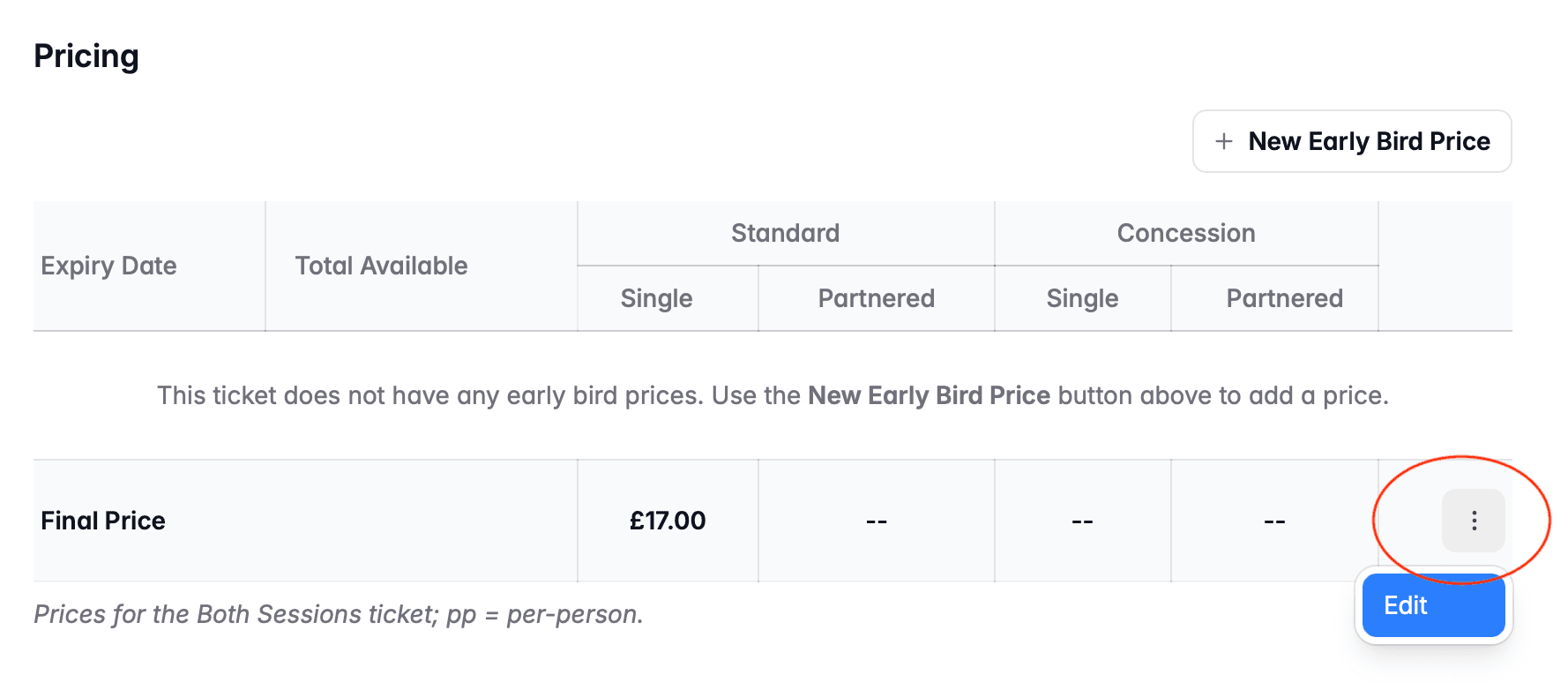
When viewing a ticket type, prices are shown in the pricing table. The prices you entered when creating the ticket type will be shown as the final price in this table.
In the image below, the final price for this ticket type is £17. To change that price, use the three dots edit button on the right hand side of the final price row:
Changing the Schedule
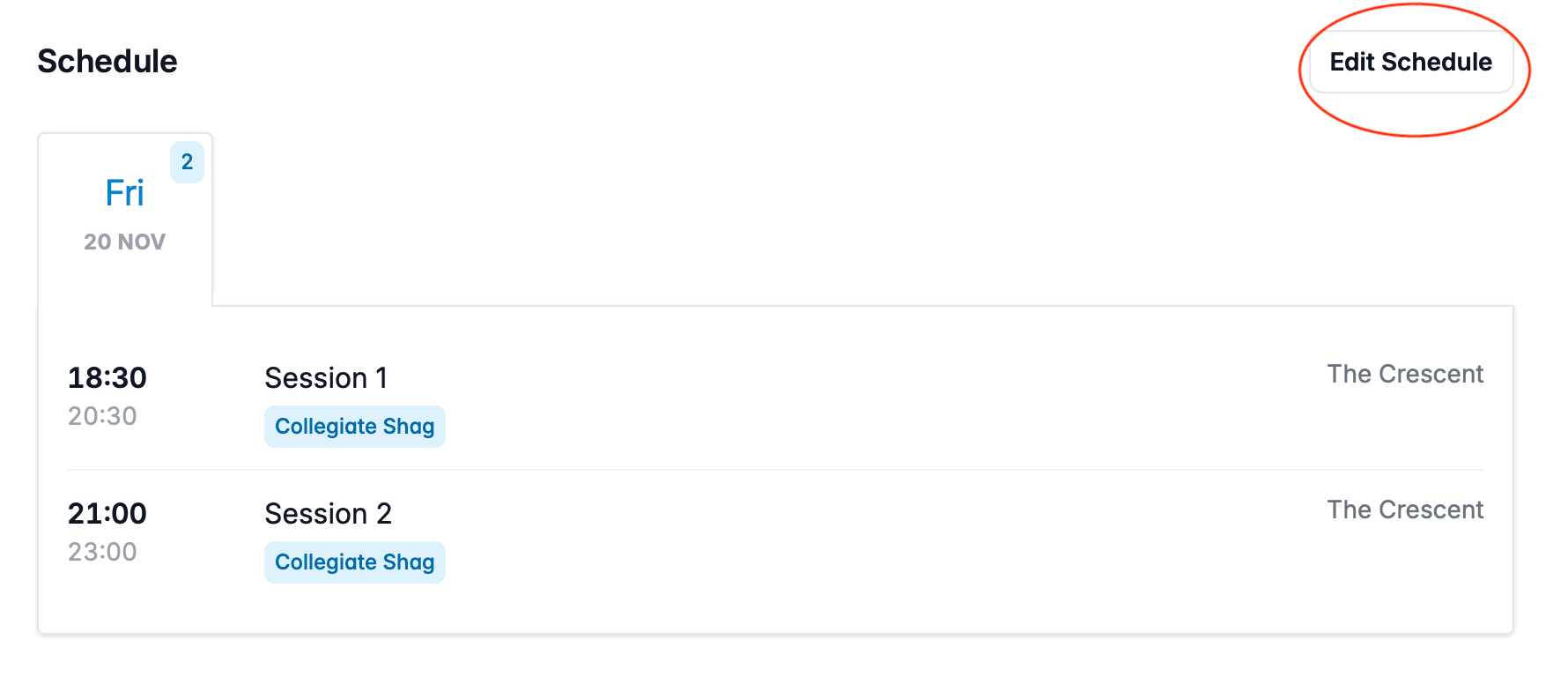
Below the pricing table, the schedule for the ticket type is shown. These are the activities a customer is admitted to when they purchase this ticket.
To change it, use the Edit Schedule button. This will open a dialog in which you can choose the schedule in exactly the same way you did when you created the ticket type.
Changing the schedule of a ticket type does not amend any tickets that have already been sold. These existing tickets will continue to admit customers to the activities that were configured at the point in time the customer paid for the ticket. Contact support if you need to recalculate tickets that have already been issued.
Early Bird Pricing
Early bird pricing allows you to set lower prices for your ticket type to incentivise customers to book early. These can be configured in the Pricing section when editing a ticket type.

As shown in the example above, the prices you entered when creating the ticket type are the final (highest) prices. Use the New Early Bird Price button to add an early bird price.
This will open a drawer to create the Early Bird price. Note that it must have either a date on which it expires, or limited availability; or both.
Early Bird Price
Enter the prices that apply. If your ticket type has concession enabled, you will also need to enter a concession price.
If you want to use partnered pricing for this early bird price, turn the Partnered Pricing toggle on, then enter the price.
Expiry Date
Use the Expires on a date toggle if you want your early bird price to only be available up to a specific date and time. For example, your early bird price might only be available until two months before your event.
Limited Availability
Limit the number of customers that can receive the early bird price by turning the Limit the availability of this price toggle on. You'll then need to enter the number of customers that can receive the price. For example, you might want only the first 10 people booking to receive the price.
The number you enter here is the number of customers - so if a lead and follow are booking a partnered ticket, they will count as 2 customers.
Editing & Deleting Early Bird Prices
Once created you will see the prices in the table, as shown below.
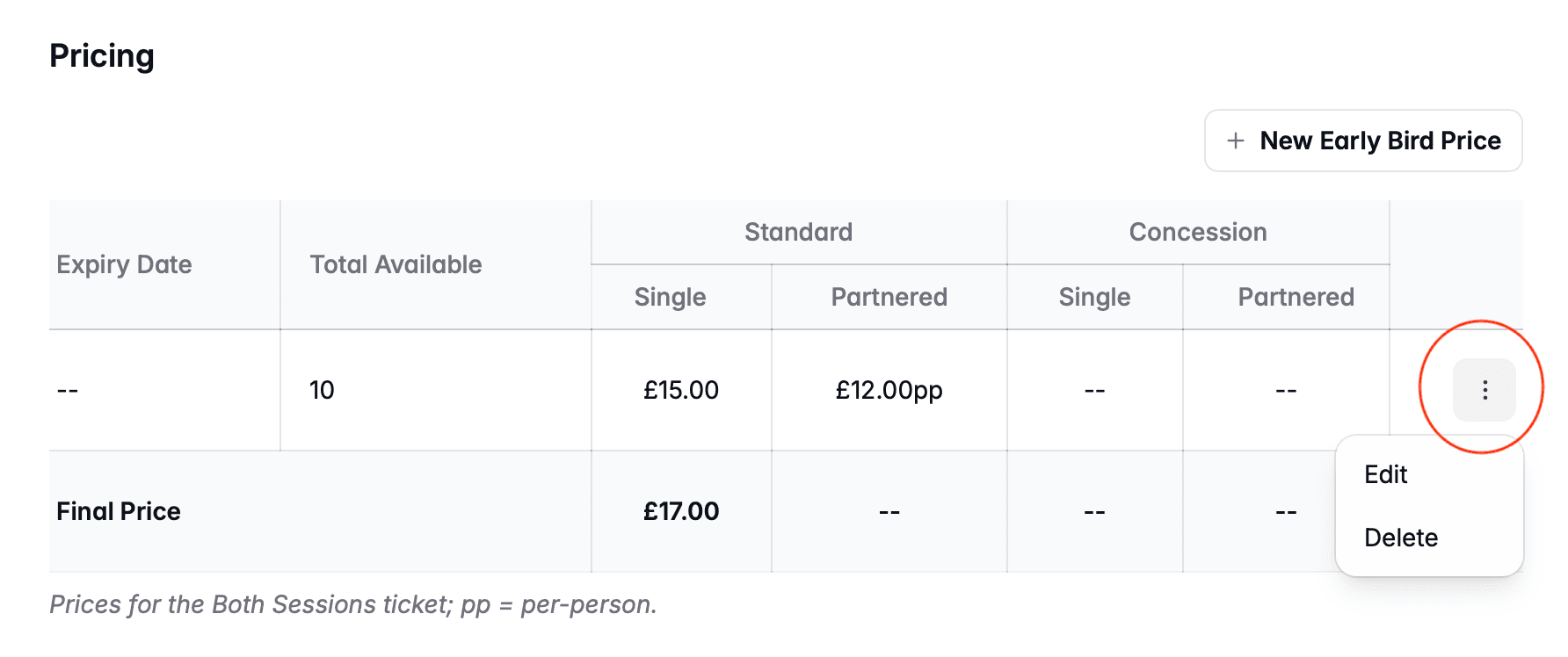
To edit an early bird price, use the button on the right hand side of the row, and select Edit.
To delete early bird prices, use the same button and select Delete.
Deleting an early bird price does not affect tickets that have already been bought with that price.
Deleting Ticket Types
To delete ticket types, head back to the list of ticket types at your event.
Use the button on the right hand side of the row to open a menu for that row, then choose Delete, as shown below. You will be prompted to confirm the deletion.
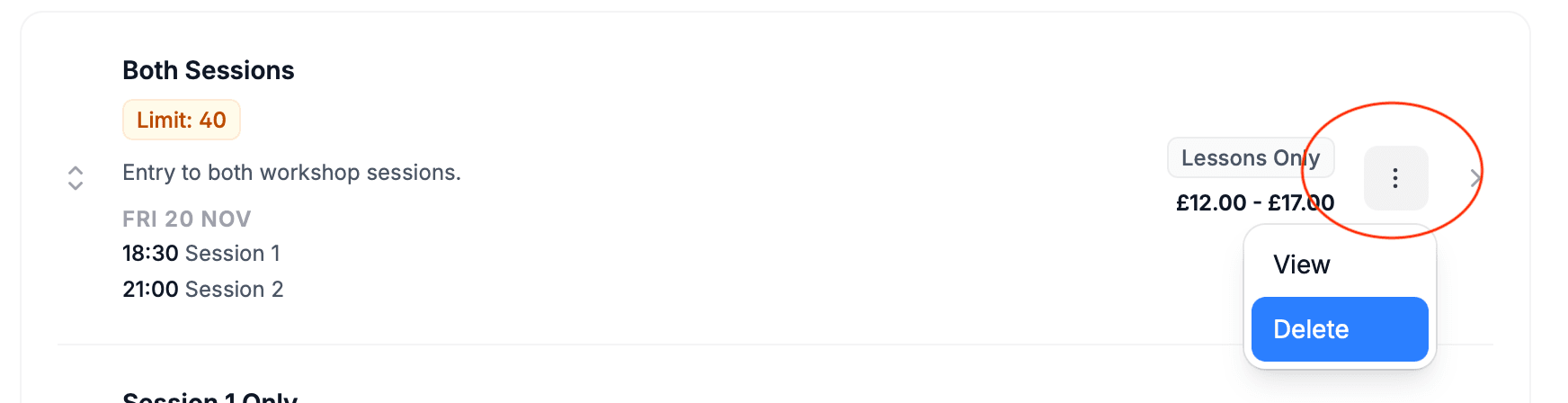
If you delete a ticket type that customers have already purchased, it will not delete the tickets. Instead, these tickets will no longer show the name of the ticket type that was used when they were bought.
We therefore do not recommend deleting ticket types that have already been bought. Instead, hide the ticket type so that customers can no longer purchase it.