Ticketing & Registrations
Capacity, Roles & Balance
In this chapter we cover how to manage activity capacity, dance roles and balance at your event.
This is the capacity, roles and balance per activity at your event. These settings are managed per activity at events because you may want different settings depending on what the activity is.
For example, an event with two lessons - Beginners and Improvers. You may want a higher capacity and a less restrictive balance at the Beginners class when compared to the Improvers class.
Or, for example a lesson followed by a social dance. You may want dancers to sign up as a lead or follow for the lesson, but not worry about the role for the social dance.
Capacity is only managed per-activity if you chose this option when configuring your registration settings. If you chose to manage capacity per-ticket-type, then you will not be asked to set capacities for each activity.
Roles & Balance Page
Draft Events
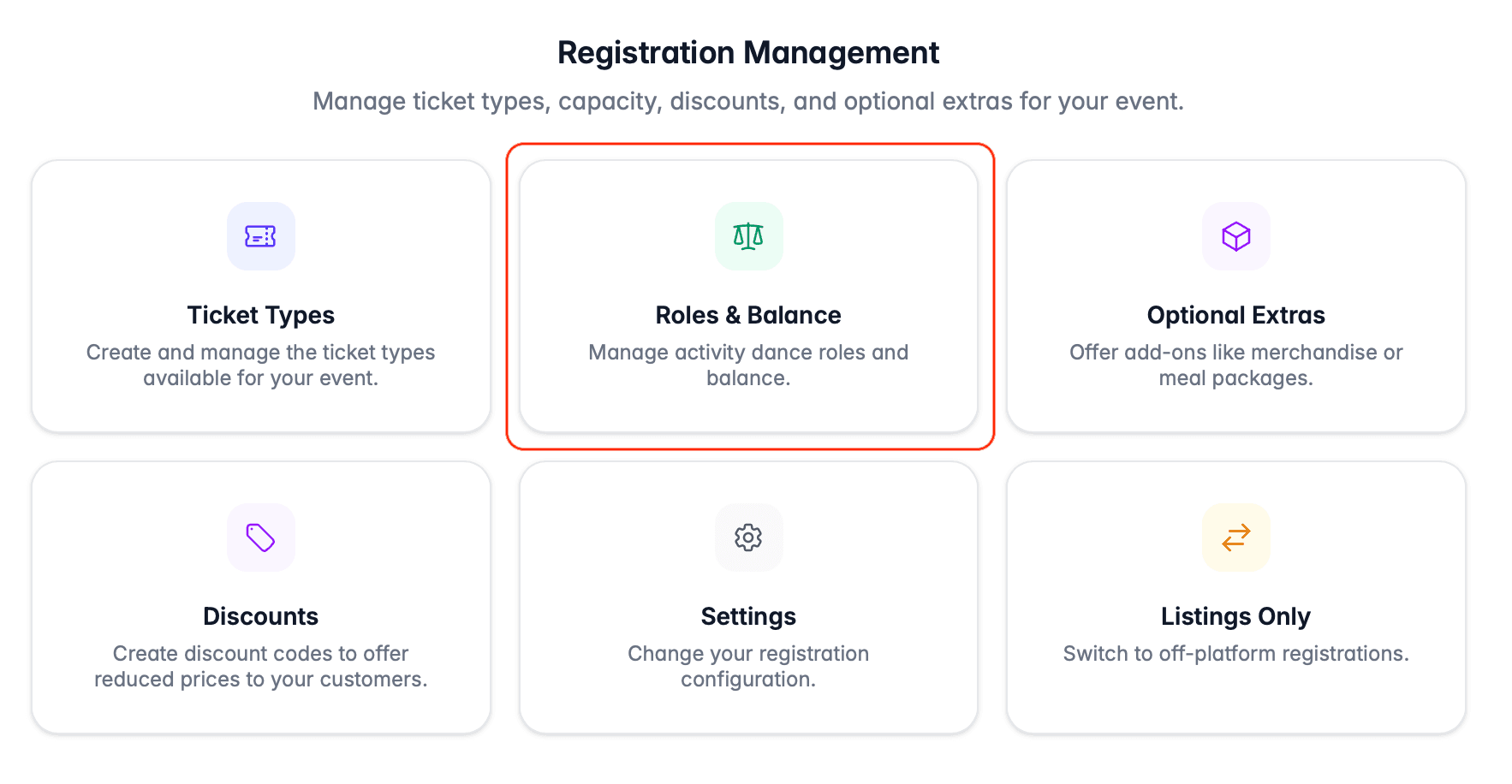
On the Registrations step of the draft event workflow, choose Capacity, Roles & Balance (or just Roles & Balance) after submitting your registration settings:
Published Events
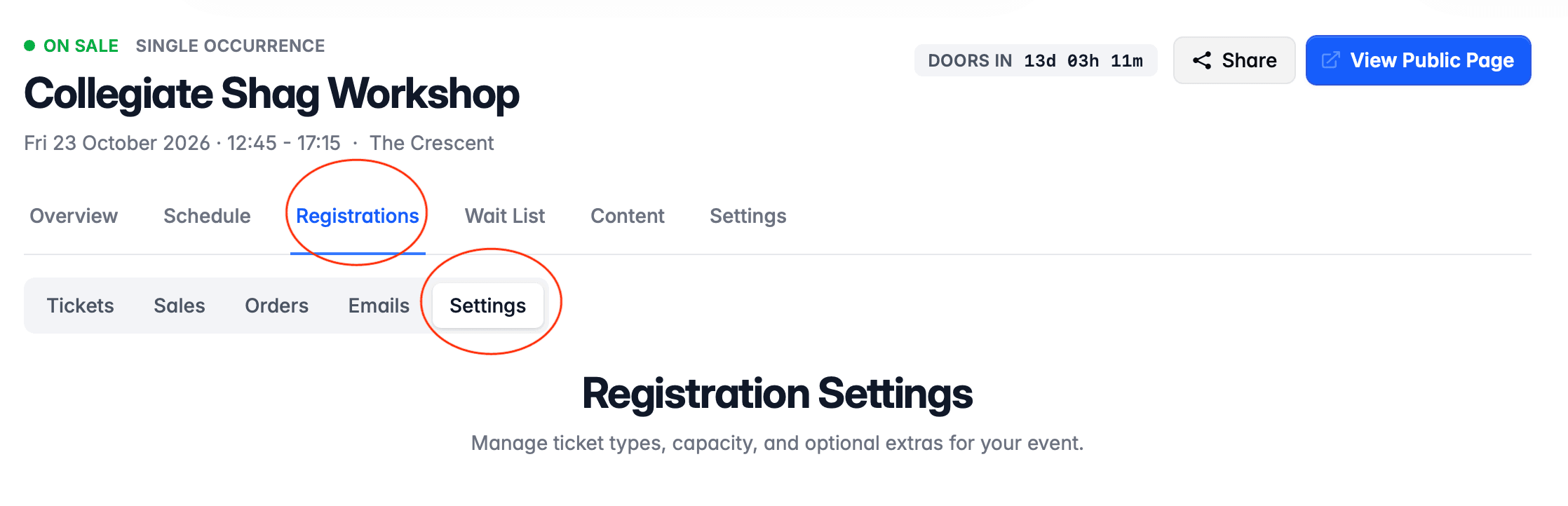
To access the page on a published event, choose Registrations, then Settings:
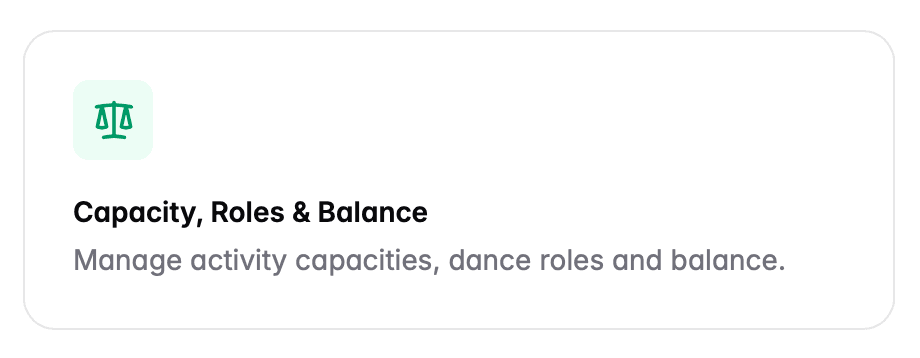
Then choose Capacity, Roles & Balance (or just Roles & Balance):
Editing
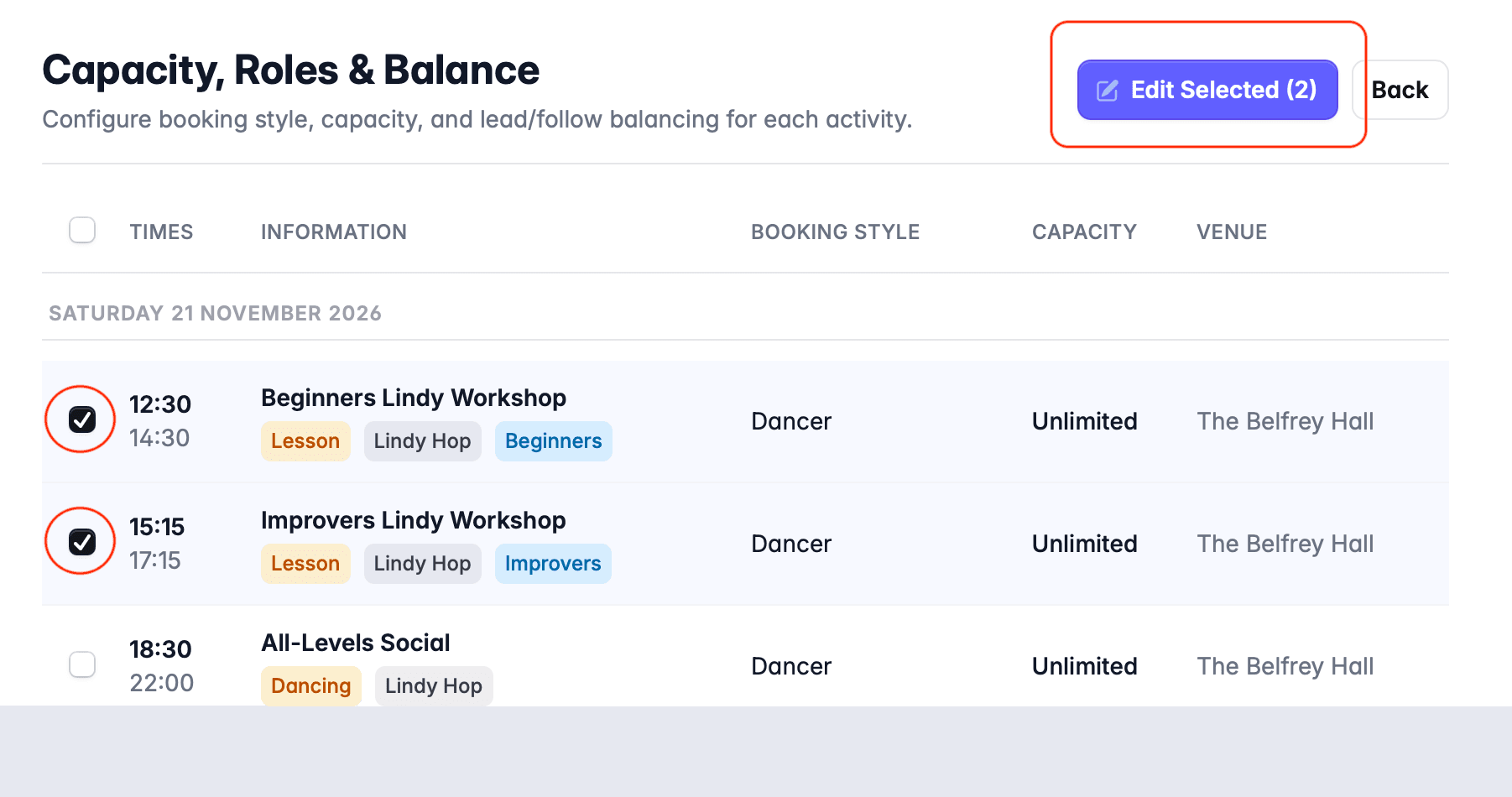
The page will display your schedule of activities. To edit settings, select a row using the check box on the left hand side of the row. Then click the Edit Selected button.
You can select multiple rows at once. This makes it easy to apply the same settings to multiple activities in your schedule at once.
For example, this event has two workshop sessions followed by a social dance. To edit both workshop sessions at once, we select both rows and choose Edit Selected:
This will open a drawer where you can configure the following settings.
Booking Style
This determines how customers must sign up for the event:
- Lead/Follow - ensures customers book as a lead or a follow.
- Lead/Follow/Switch - ensures customers book as a lead or follow, but also gives them the option to sign up as a switch role. This is useful where you are running a class where some dancers will both lead and follow (i.e. switch) during the class. It is also useful for social dances where you want to give customers the option of specifying that they dance both roles.
- Partnered Only - means customers can only purchase partnered tickets, i.e. a lead and follow booking at once. This is useful where dancers will not rotate in a class and will remain with the partner they signed up with.
- Dancer (Unspecified or Solo) - customers do not need to specify a role when signing up. Use this for lessons where customers dance solo - e.g. a Solo Jazz class - or where you do not want to sell tickets on the basis of role - e.g. social dances where you are not concerned about ratios between roles.
Choosing partnered only?
When selecting this booking style, the capacity still refers to the total number of dancers who can be admitted. For example, a capacity of 30 would admit 15 couples.
Capacity Limit
Select the Limit capacity at this activity? option to set a capacity. This is the maximum number of dancers you can admit to the activity.
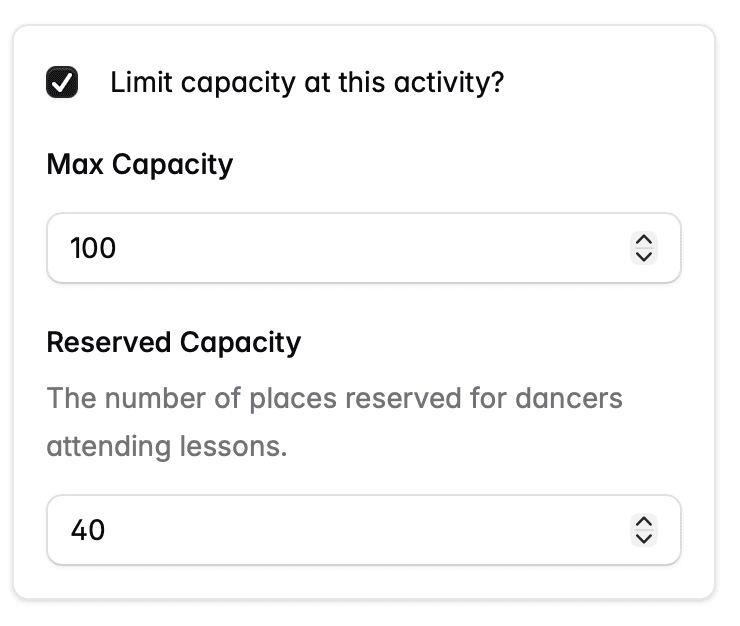
Not setting a limit will mean the activity has an unlimited capacity.
If you are editing a social dance, you will also see a Reserved Capacity field. This determines the number of places at the social dance that should be reserved for dancers who are also attending lessons at your event.
For example, say your event has a lesson with a capacity of 40, and a social dance with a capacity of 100. You will want to reserve 40 places at the social dance for customers who are attending the lesson.
Reserving 40 places at the social dance prevents DanceCloud from selling too many tickets that only admit customers to the social dance.
Lead/Follow Balancing
If you selected Lead/Follow or Lead/Follow/Switch booking styles, you can choose for DanceCloud to automatically manage the balance at the selected activities.
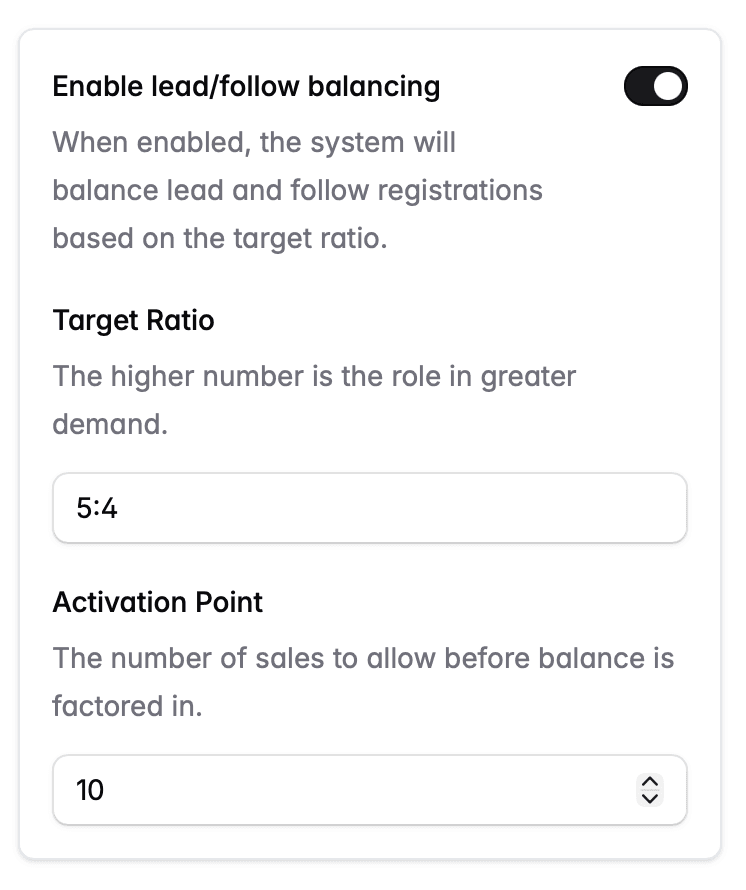
Use the Enable lead/follow balancing toggle to turn it on:
Target Ratio
The target ratio determines the balance between leads and follows at the activity. For example, you could set a lesson to 5:4 to ensure a good ratio of leads and follows. However, a social dance you may want to be less restrictive - for example, 3:2 or even 2:1.
When entering a ratio, the higher number always applies to the role that has the highest demand. So if we set it to 5:4, the 5 will apply to whichever role has a higher number of bookings and the 4 to the lower.
See the Target Ratios chapter for a more detailed explanation and more examples.
Activation Point
The activation point determines how many sales should be allowed before DanceCloud starts to consider the ratio when processing bookings. Set this to a proportion of your capacity that you are willing to sell before the ratio is considered. For example, a lesson with a capacity of 30 could have an activation point of 7.
For a more detailed explanation, see the Activation Points chapter.