Listing Events
Event Info & Recurrence
This chapter covers the first step in listing a dance event.
Start and End Dates
Enter the start and end dates of your event.
If your event is recurring, enter the start and end dates for the first occurrence. For example, if you are creating a weekly class on a Wednesday, the start and end dates would be for the first Wednesday.
One-Off vs Repeating Events
Next you have a choice of whether you are creating a one-off event, or a repeating event. You have three choices:
- One-off event: a single event that happens on a specific date.
- Recurring event: a repeating event that runs on a fixed weekly or monthly schedule.
- Ad-hoc repeating event: a repeating event that runs on an ad-hoc basis with no set schedule. For example, a social dance that happens frequently but the date varies.
Remember you can copy events. So even if you choose One-off event, if you run the event again in the future you can copy it to the new date.
Event Brands
If you choose Recurring event or Ad-hoc repeating event, you'll be asked to create an Event Brand.
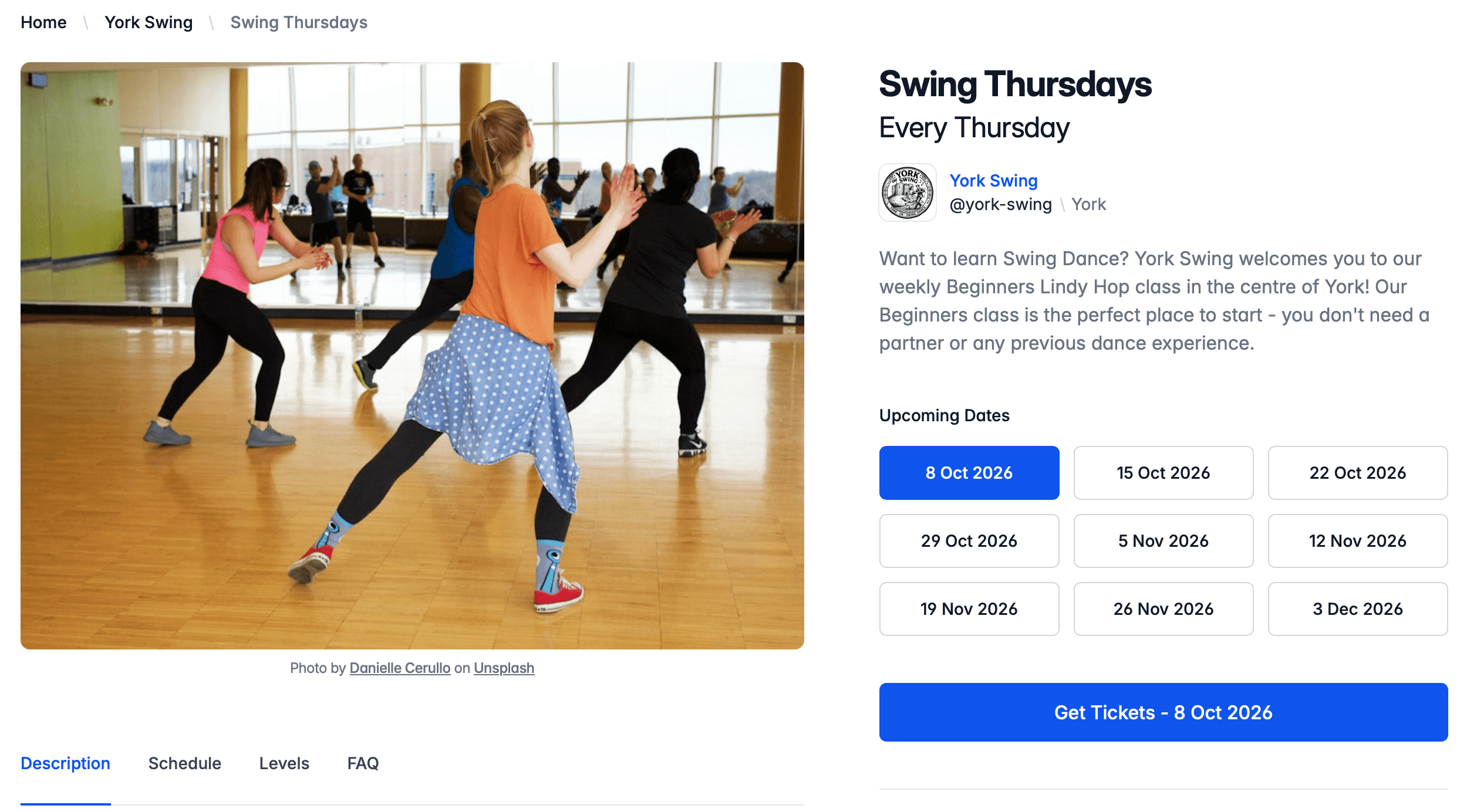
A brand is the name dancers know your repeating event by. For example, if you ran a regular social dance called Suzi-Q Social, then that is the brand name a dancer knows it by.
Brands get their own page in DanceCloud Listings, that shows their upcoming dates. This helps a dancer answer the question: When is the next Suzi-Q Social?
If a dancer would not ask that question, then you do not need to create a brand. Instead, choose One-off event. If you run that event again, copy it rather than creating it from scratch.
Creating Event Brands
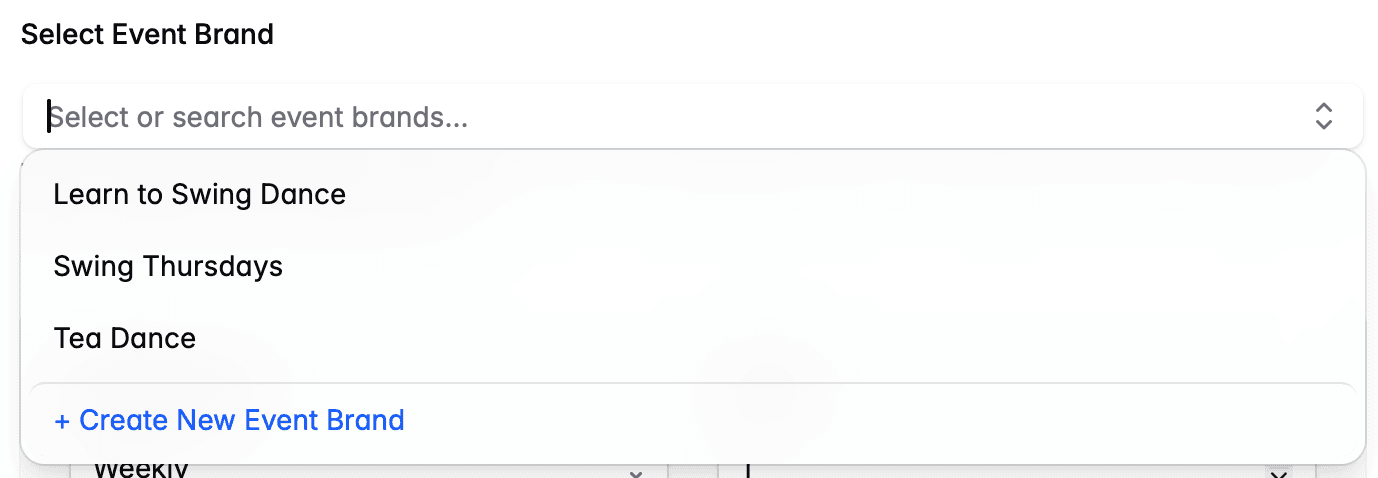
When you are prompted to select an event brand, you will need to either select an existing one or create a new one. The select box will show recent brands you've used, or you can search by name for an existing brand:
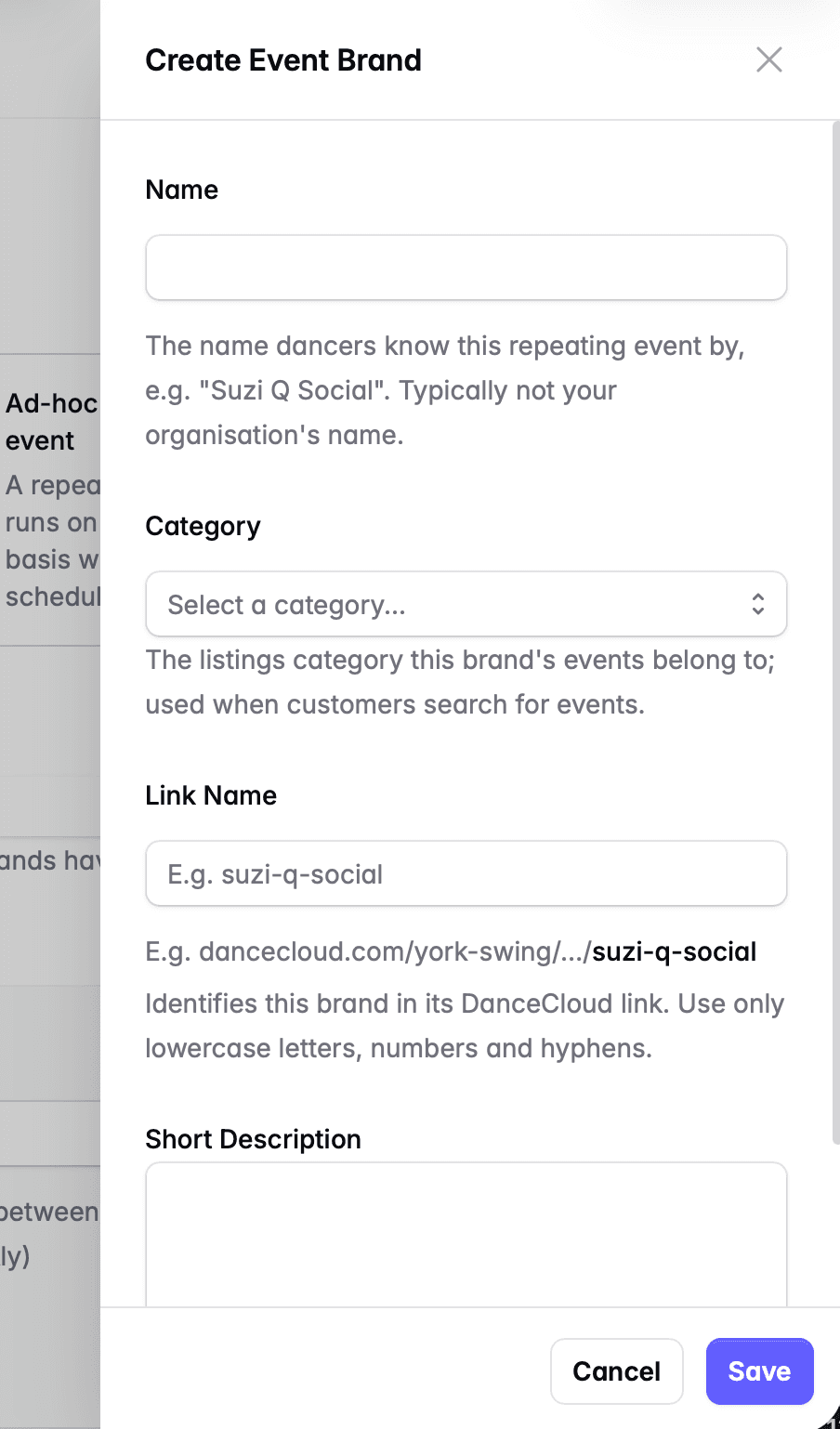
To create a new brand, choose the Create New Event Brand from the drop down. This will open a drawer to enter the brand's details.
You'll need to provide:
- Name: the event brand name your customers know this event by.
- Category: the listings category, this is covered in more detail below.
- Link Name: a human-friendly identifier for the event brand, used in the DanceCloud URL. Use only lowercase, numbers and hyphens.
- Short Description: describe your event brand in a few sentences. This is shown when the event appears in lists on DanceCloud Listings, for example when a dancer is searching for events.
One-Off Events
If you choose One-off event, you'll need to provide the following information:
- Event Title: the title shown to customers when listing your event.
- Category: the listings category, this is covered in more detail below.
- Link Name: a human-friendly identifier for the event, used in the DanceCloud URL. Use only lowercase, numbers and hyphens.
- Short Description: describe your event in a few sentences. This is shown when the event appears in lists on DanceCloud Listings, for example when a dancer is searching for events.
Recurring Events
If you choose a recurring event, you have the choice of Weekly or Monthly.
Weekly Events
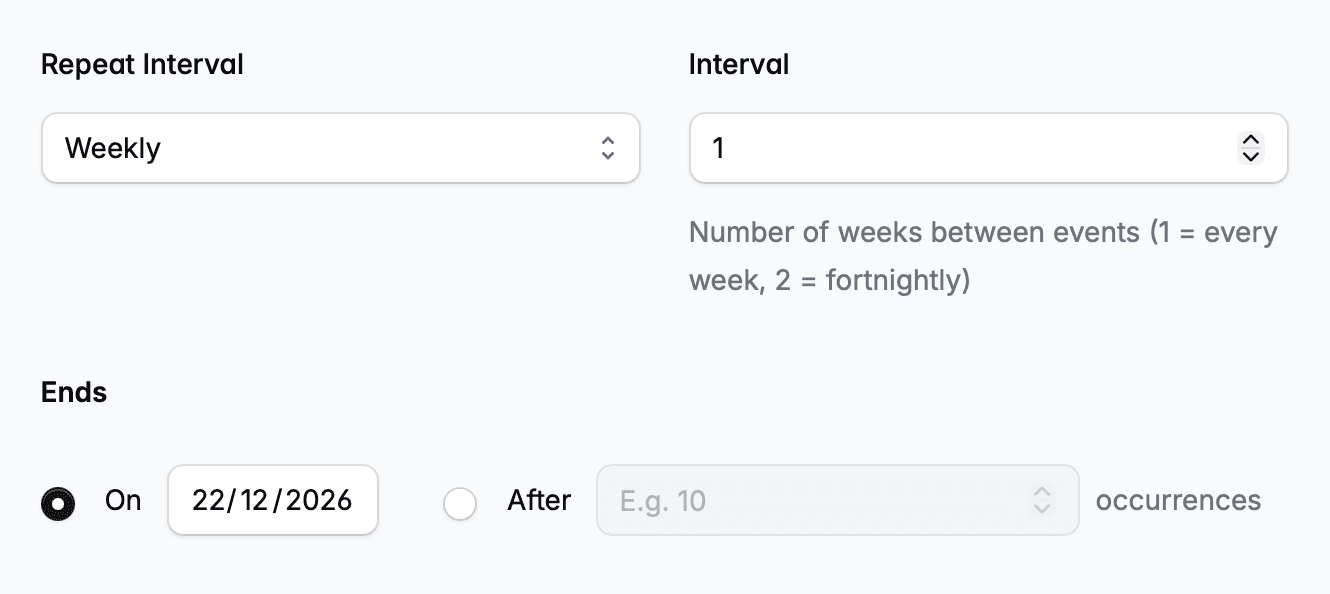
Choose Weekly, then enter the interval. An interval of 1 means every week, 2 fortnightly, etc.
You will then need to select either an end date, or a number of occurrences. A weekly event cannot repeat for more than a year. Towards the end of the year if you need to recreate the event, you will be able to copy it.
Monthly Events
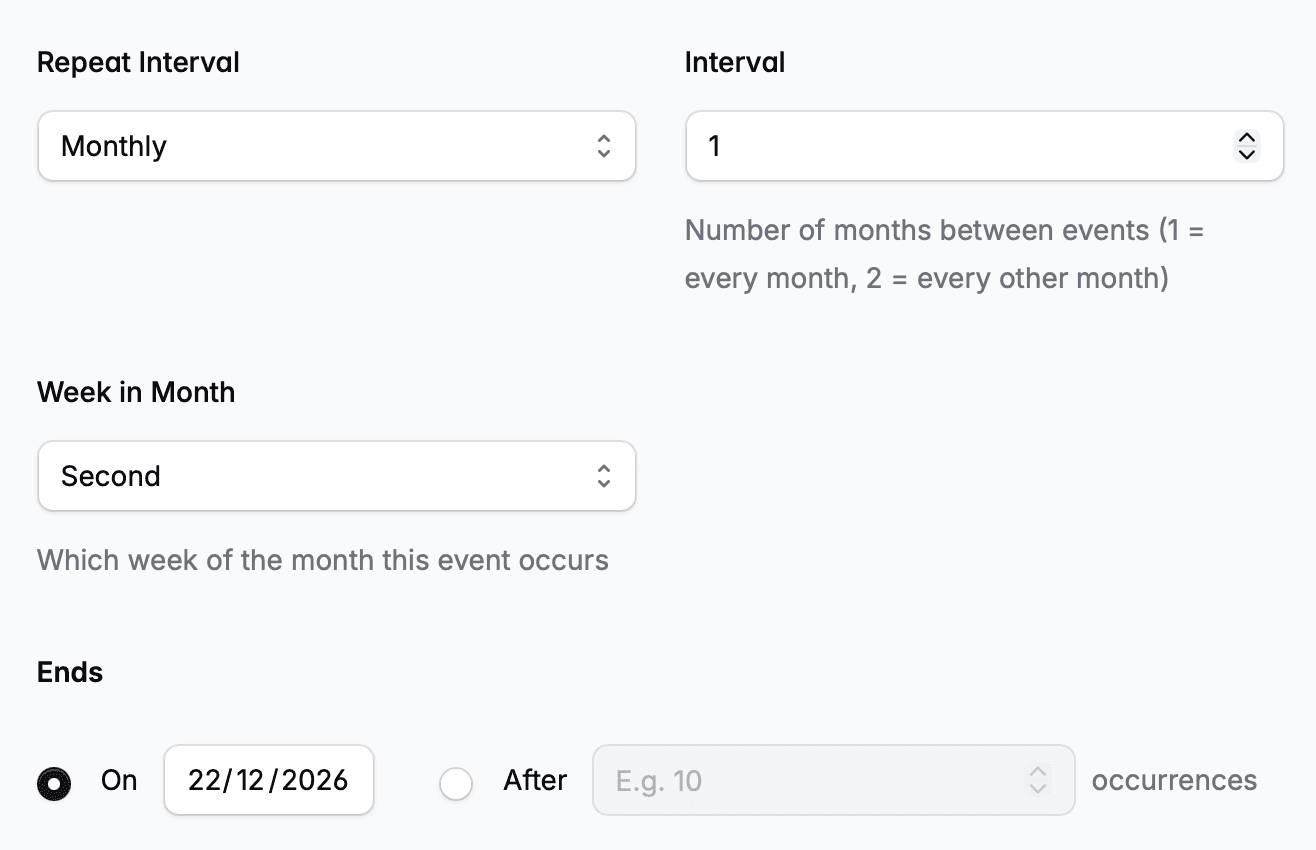
Choose Monthly, then enter the interval. 1 means every month, 2 every other month, etc.
The Week in Month field will be automatically populated based on the start date you entered above. For the first, second and third weeks of the month this will likely be correct. If you run an event on the fourth or last week of the month, you will need to select the correct one. Fourth means "always the fourth week" whereas Last could be the fourth or fifth of the month, depending on the month.
You will then need to select either an end date, or a number of occurrences. A monthly event cannot repeat for more than a year. Towards the end of the year if you need to recreate the event, you will be able to copy it.
Skipping Dates
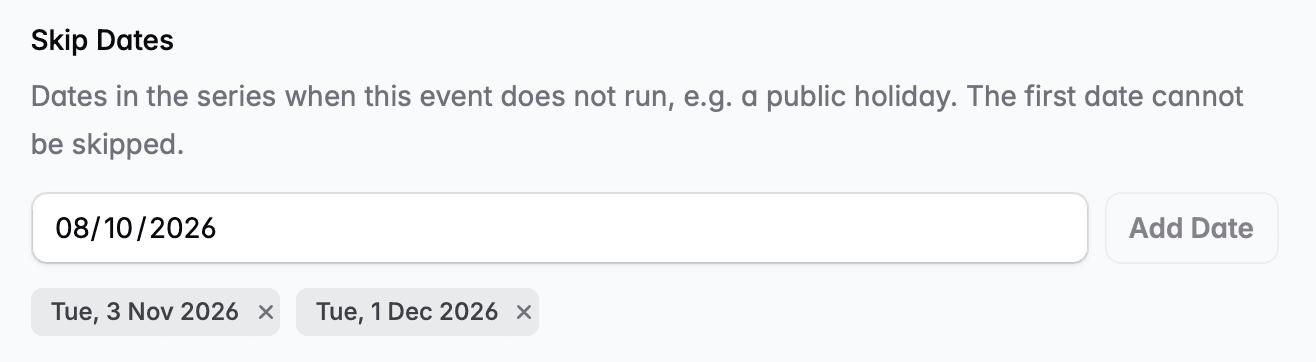
If you know that there are dates in your weekly or monthly event where the event will not be held, use the Skip Dates field. To use this, you must select an End Date, not a number of occurrences.
Enter the date you want to skip, then press Add Date. You can add as many dates as you need to skip.
Ad-hoc Repeating Events
If you chose an Ad-hoc repeating event, the only thing you will need to provide is the Event Brand (see above).
Ad-hoc repeating events get their own event brand page. Once you've created the first listing for this brand, you can copy it to subsequent dates.
Listings Category
Select a listings category for your event. This helps customers find your event when browsing events on DanceCloud.
You can choose from the following categories:
- Ball - Formal social dance events, typically with a theme or for a special occasion.
- Class - Regular dance classes, for example weekly or fortnightly classes. Attended by your local community of dancers.
- Course - A series of dance classes, typically over a few weeks, for example a 4-week improvers course. Typically attended by your local community of dancers.
- Exchange - Large social dance events where dancers from different scenes (national and/or international) come together to dance.
- Festival - Multi-day dance events, typically with a variety of workshops and social dancing. Draws dancers from a national and/or international audience.
- Social Dance - Regular social dance events, for example monthly socials. Attended by your local community of dancers.
- Weekender - Multi-day dance events, typically combining social dancing and workshops. Draws dancers from your local community of dancers and wider - for example, other regional scenes.
- Workshop - Dance events focused on learning. Attended by your local community of dancers and perhaps wider - for example, other regional scenes.
Class vs Social
Regular classes in some dance styles like Swing and Salsa often have social dancing on the same evening. Likewise, some regular socials may also start with a class, e.g. a Beginners Taster class.
When choosing Class or Social Dance for these events, choose the one that is the primary focus of the event when you are marketing it. As well as using the category, DanceCloud will also analyse your event's schedule to determine whether it should match what a dancer is searching for.
What's Next?
On the next step, you will create your event's schedule. Use the Continue button to proceed to the next step.