Ticketing & Registrations
Discounts
In this chapter we cover creating discounts that customers can apply to their tickets during the checkout, by entering the discount's code.
Discounts Page
Draft Events
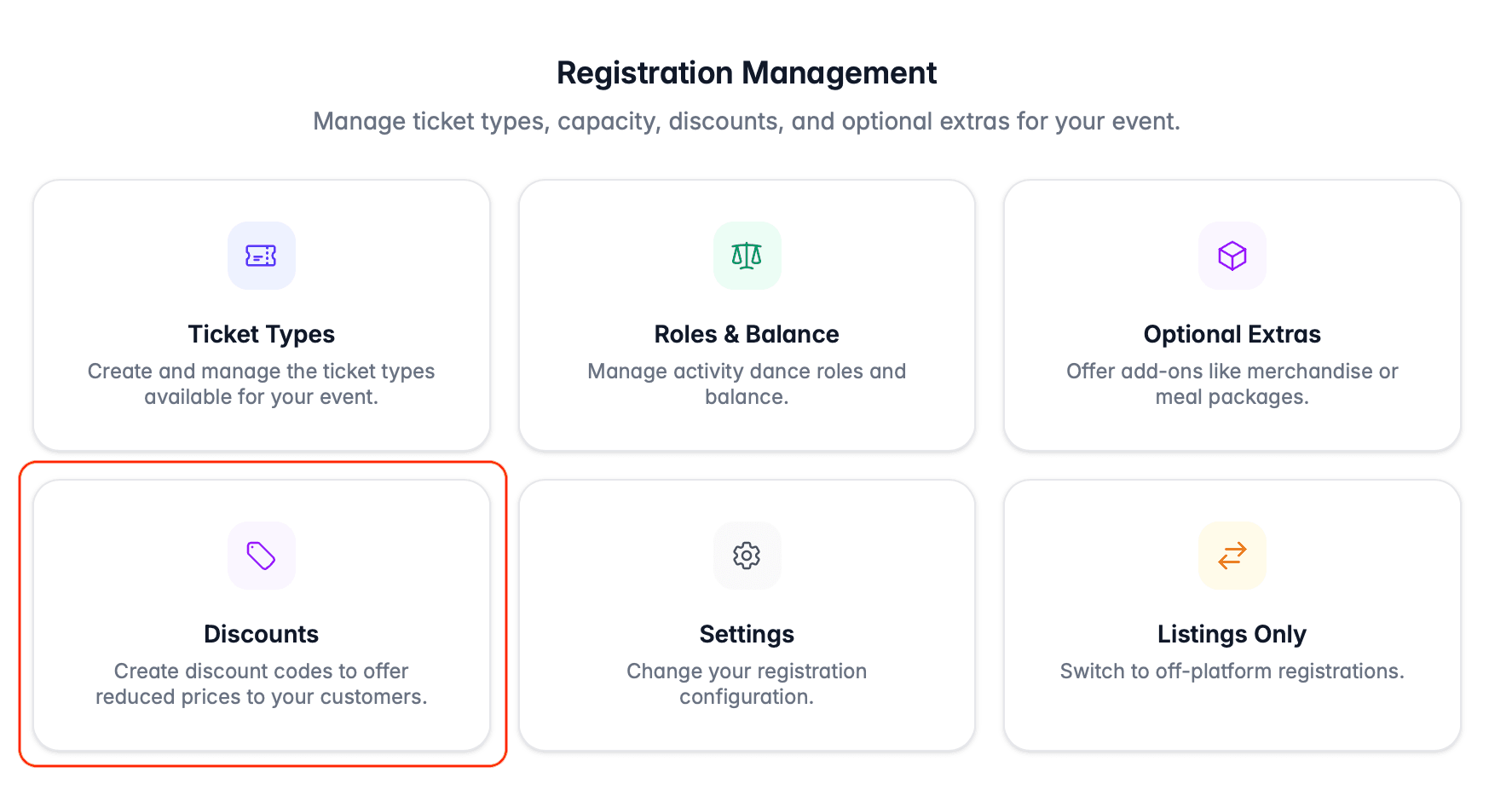
On the Registrations step of the draft event workflow, choose Discounts after submitting your registration settings:
Published Events
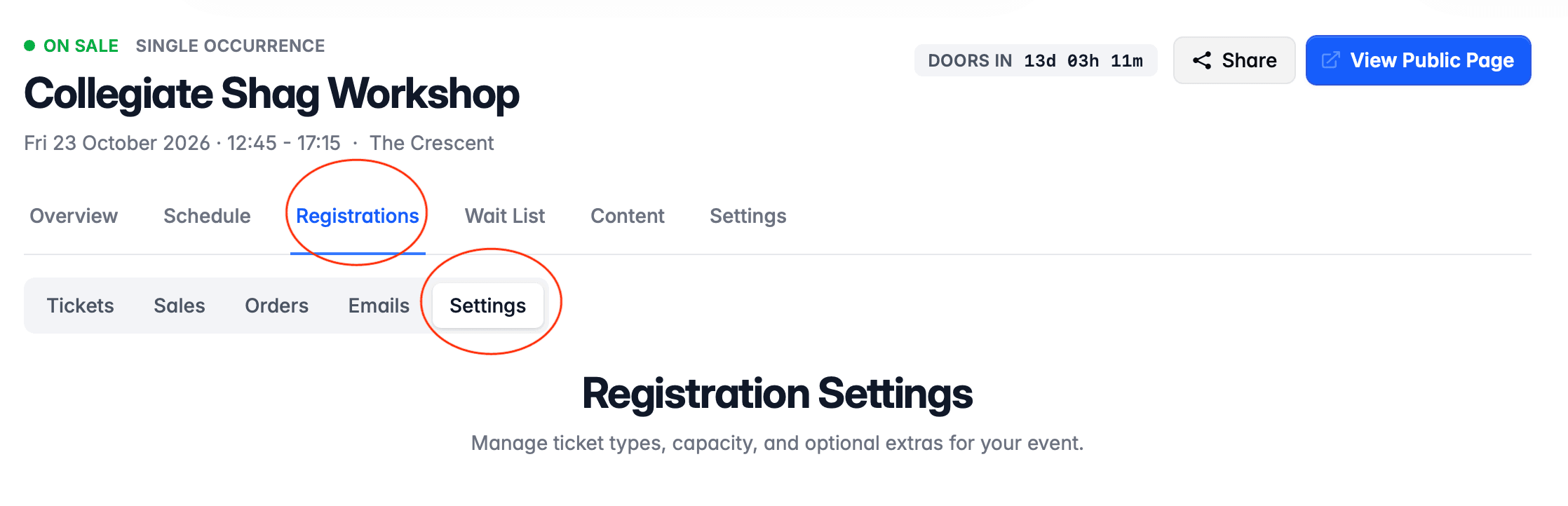
To access the discounts page on a published event, choose Registrations, then Settings:
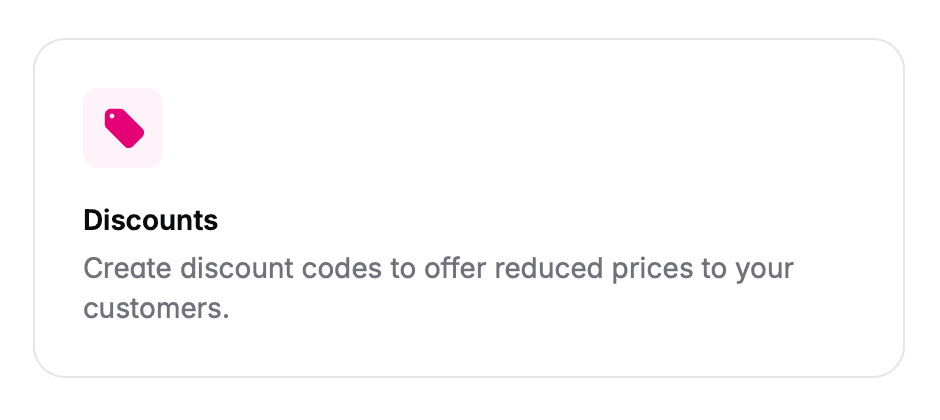
Then choose Discounts:
Discounts Apply to Tickets
One important thing to note is that discounts apply to tickets, not the whole order. So, if you create a discount that can be used 10 times, that means it can be applied to 10 tickets.
If a customer is purchasing multiple tickets, depending on how you set up the discount they may be able to apply it to multiple tickets at once.
Creating Discounts
On the Discounts page, use the Add Discount button to create your first discount.
Title
Enter a title for the discount. This is shown to customers if they successfully apply the discount to their ticket.
Code
Enter the code that customers need to enter to apply this discount; or use the Generate random code button.
The code can be anything you like, but:
- must be unique to the event, i.e. you cannot use the same code multiple times at the same event; and
- can only contain letters and numbers, i.e. no spaces or other punctuation.
Type of Discount
Select whether the discount is:
- money off - e.g. £5 off the ticket price;
- percentage discount - e.g. 25% off the ticket price; or
- free ticket - this is a 100% discount.
If you select a money off discount, and the discount amount is greater than the ticket price, the customer will receive the ticket for free.
For example, if the discount was £10, but the ticket price was only £8, the customer will be given the ticket for free. The remaining £2 does not roll over to other tickets on the order.
Validity Window
You can optionally choose whether your discount is valid from a start date, or expires on a date. Use the relevant toggle to enable either date, then select the date and time that should apply.
Availability Limit
You can also choose whether your discount has limited availability. Use the toggle to enable this, then enter the number of tickets that the discount can be applied to. For example, you could limit the discount to a maximum of 10 tickets.
Applicable Ticket Types
By default, the discount can be applied to any ticket type at your event.
To change this behaviour, use the Can only be used on certain ticket types? toggle. This will then allow you to select the specific ticket types the discount can be applied to.
Editing Discounts
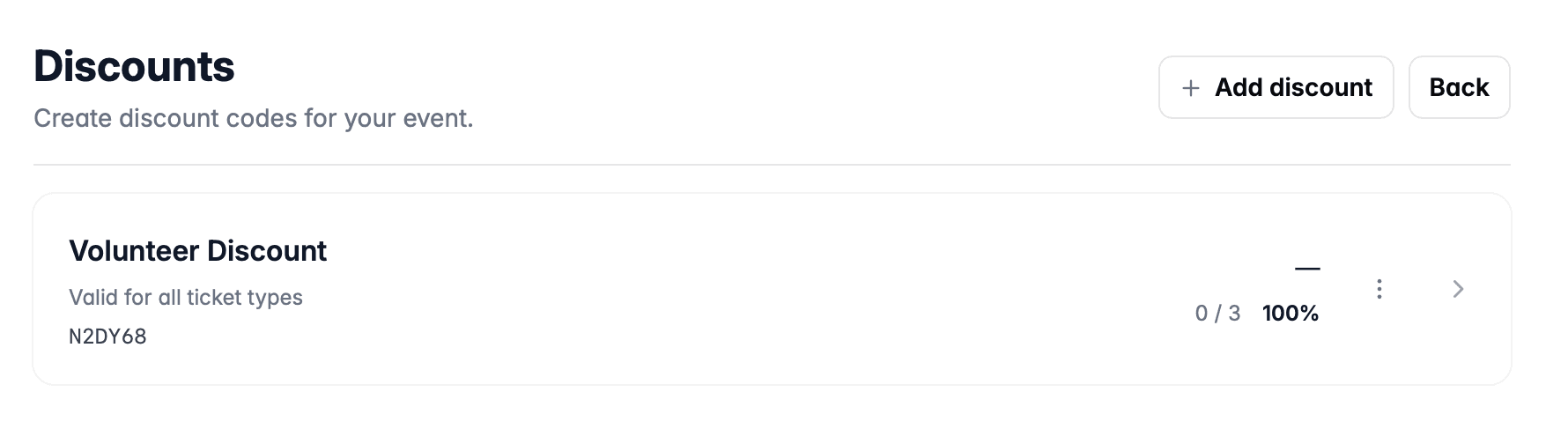
After creating your discount, you will be returned to the list of discounts.
If you need to change anything about a discount, click the row and you'll be taken to the edit form.
Editing a discount does not affect any tickets that the discount has already been applied to. I.e. if you change the eligibility criteria, it does not affect tickets that have already been deemed as eligible for the discount.
Deleting Discounts
To delete discounts, click the options menu on the right hand side of the row. Then choose Delete:
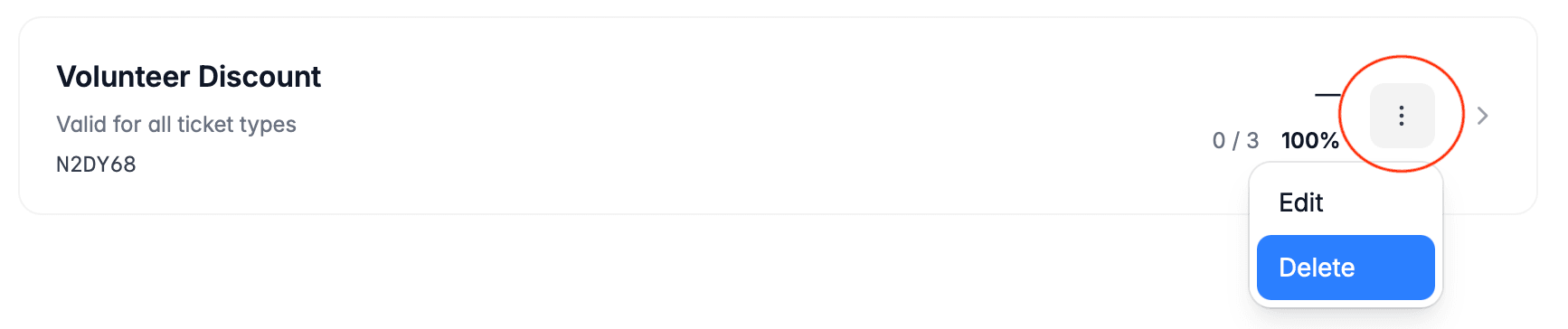
You will be prompted to confirm the deletion.
Deleting a discount does not affect any tickets the discount has already been applied to. E.g. if a 25% discount has been applied to a ticket, and that discount code is subsequently deleted, it will remain discounted by 25%. However, the customer will no longer see the name of the discount.