Listing Events
Preview & Publish
Dancers cannot see your dance event until you publish it. You can do this on the final step. You can also preview the event before publishing it.
Preview
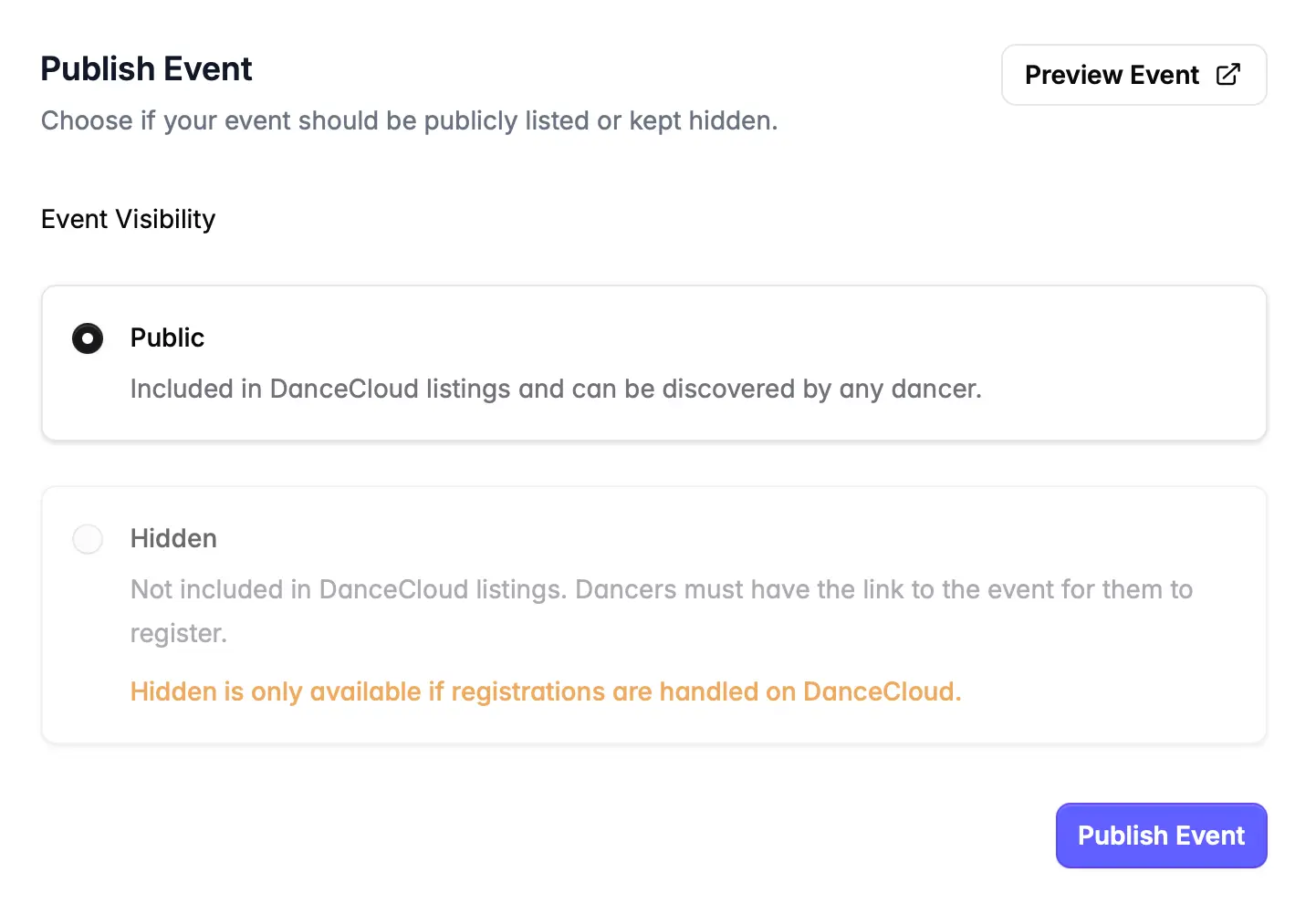
To preview what dancers will see before publishing the event, click the Preview Event button. This will open the preview page in a new tab.
Previewing the event shows you exactly what a dancer will see once the event is published. It shows how your event will look when it appears in lists (e.g. search results) plus the full event detail page.
If you chose to handle registrations on DanceCloud, you can proceed through the booking flow just as a customer would - if ticket sales are immediately open. Click the Get Tickets button on the event detail preview to follow the flow. If ticket sales open in the future, you will see ticket options but cannot proceed with booking.
Need to change anything that you see when previewing the event? Head back to previous steps in the event creation workflow to alter anything about your event.
Event Visibility
By default, listed events appear in DanceCloud Listings - i.e. they are Public.
If you have chosen to handle registrations through DanceCloud, you have the option to choose to hide your event. A hidden event does not appear in DanceCloud Listings, so dancers will need the DanceCloud URL for the event to register for it.
Publish
Click the Publish Event button to publish the event. You'll be asked to confirm before DanceCloud publishes the event.
You cannot unpublish an event once it is published; but you can change a lot of the content you chose when listing your event.
When you publish a recurring event, DanceCloud will create all the occurrences of the event.
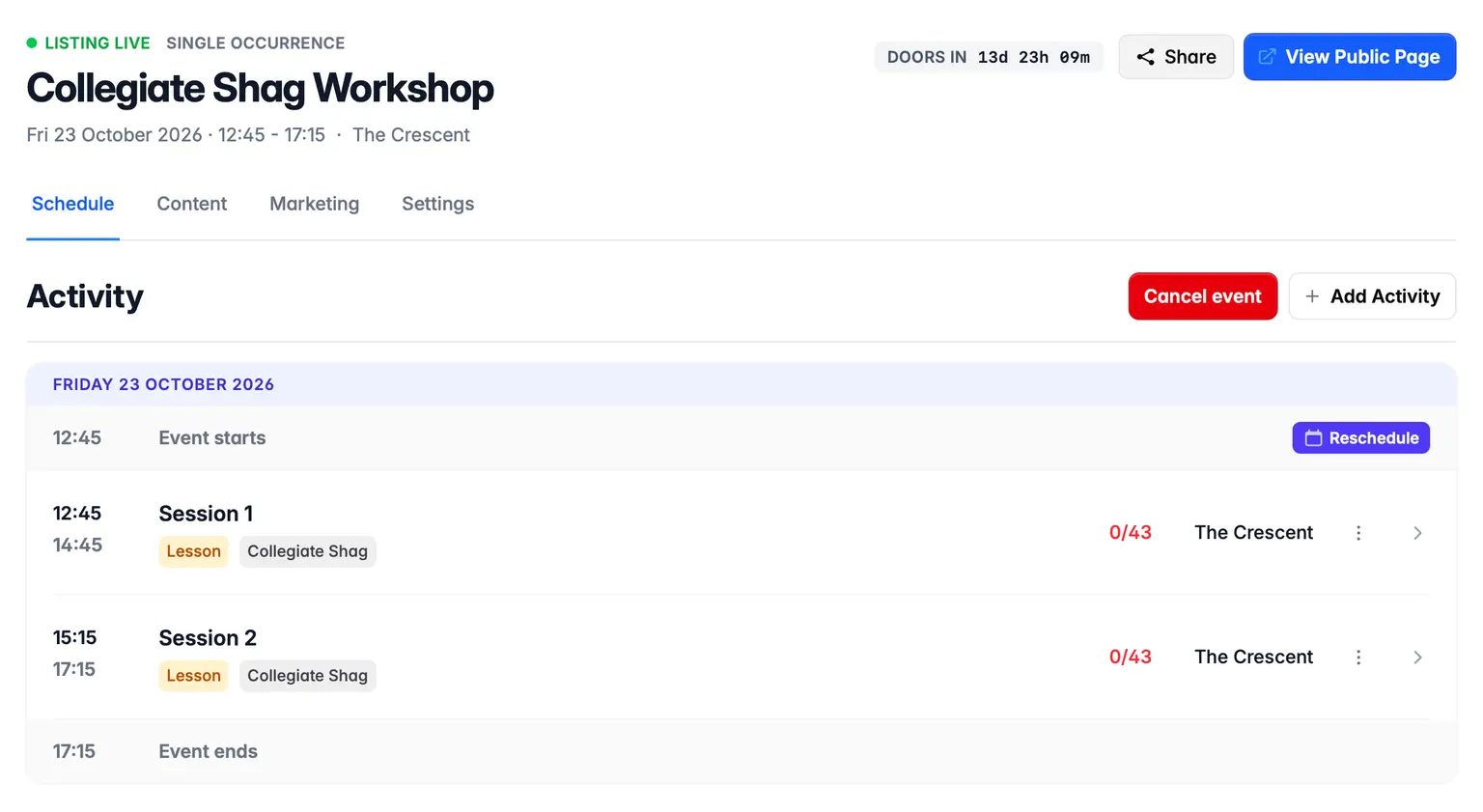
Once you have published your event, you'll be taken to the event's page in the management application:
Sharing Your Event
To share your event with dancers, you'll need the public link. That's available in the top right corner of the event page and looks like this:
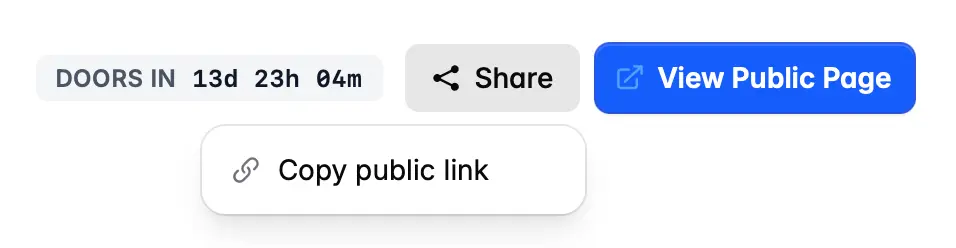
Click the Share button, then choose Copy public link. Or use the View Public Page button to open the listing's page in a new tab.