Ticketing & Registrations
Registration Settings
This chapter covers the choices you can make when choosing to handle registrations via DanceCloud. This happens on the Registrations step of the draft event workflow.
Choose Registrations via DanceCloud:
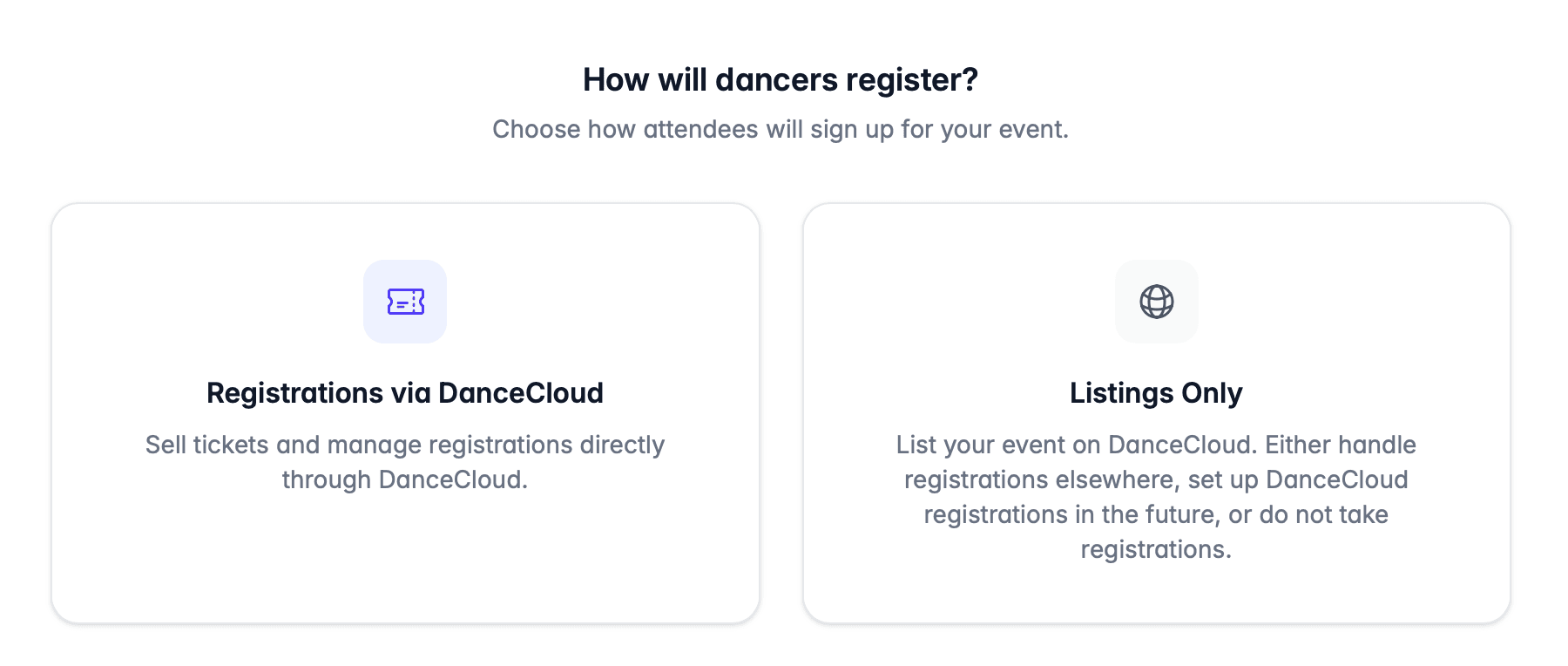
Then you'll be asked to choose a few options that control how registrations work at your event.
Booking Mode
The booking mode setting controls the experience for dancers when they register for your event.
Currently, we support ticket types as the only choice here, but more options will be added in the future.
Ticket types is the classic event ticketing approach, where customers choose a quantity of defined tickets like "Social Pass" or "Whole Weekend Pass".
Capacity Mode
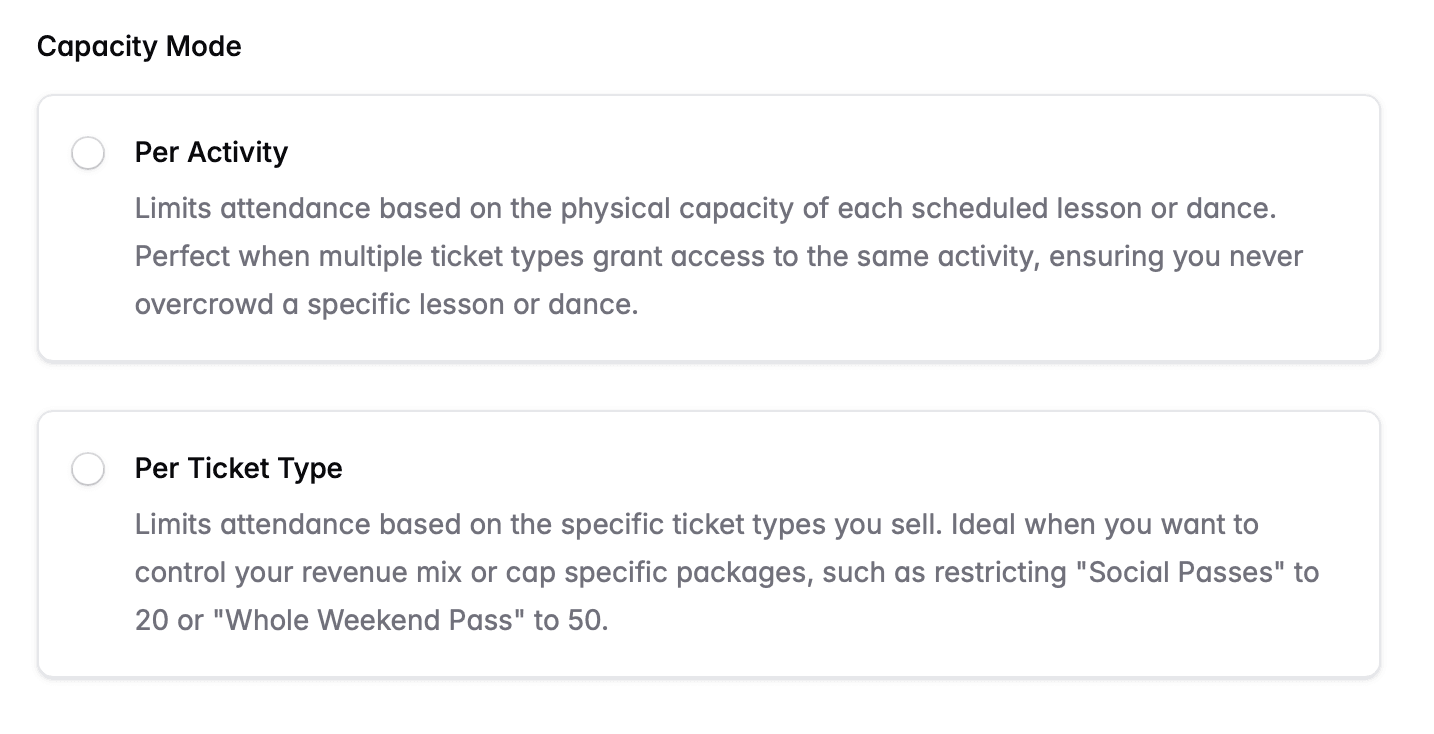
You can choose how to manage capacity at your event. You have two options:
- Per activity. This limits attendance based on the physical capacity of each scheduled activity (e.g. lesson, social dance) in your schedule. This is perfect when multiple ticket types grant access to the same activity, ensuring you never overcrowd a specific lesson or dance. Use this option when you think in terms of "how many dancers can I get in the room?" for an activity.
- Per ticket type. This limits attendance based on the specific ticket types you sell. Ideal when you want to control revenue per ticket type, or cap specific packages: such as restricting "Social Passes" to 20 or "Whole Weekend Pass" to 50.
Sales Dates
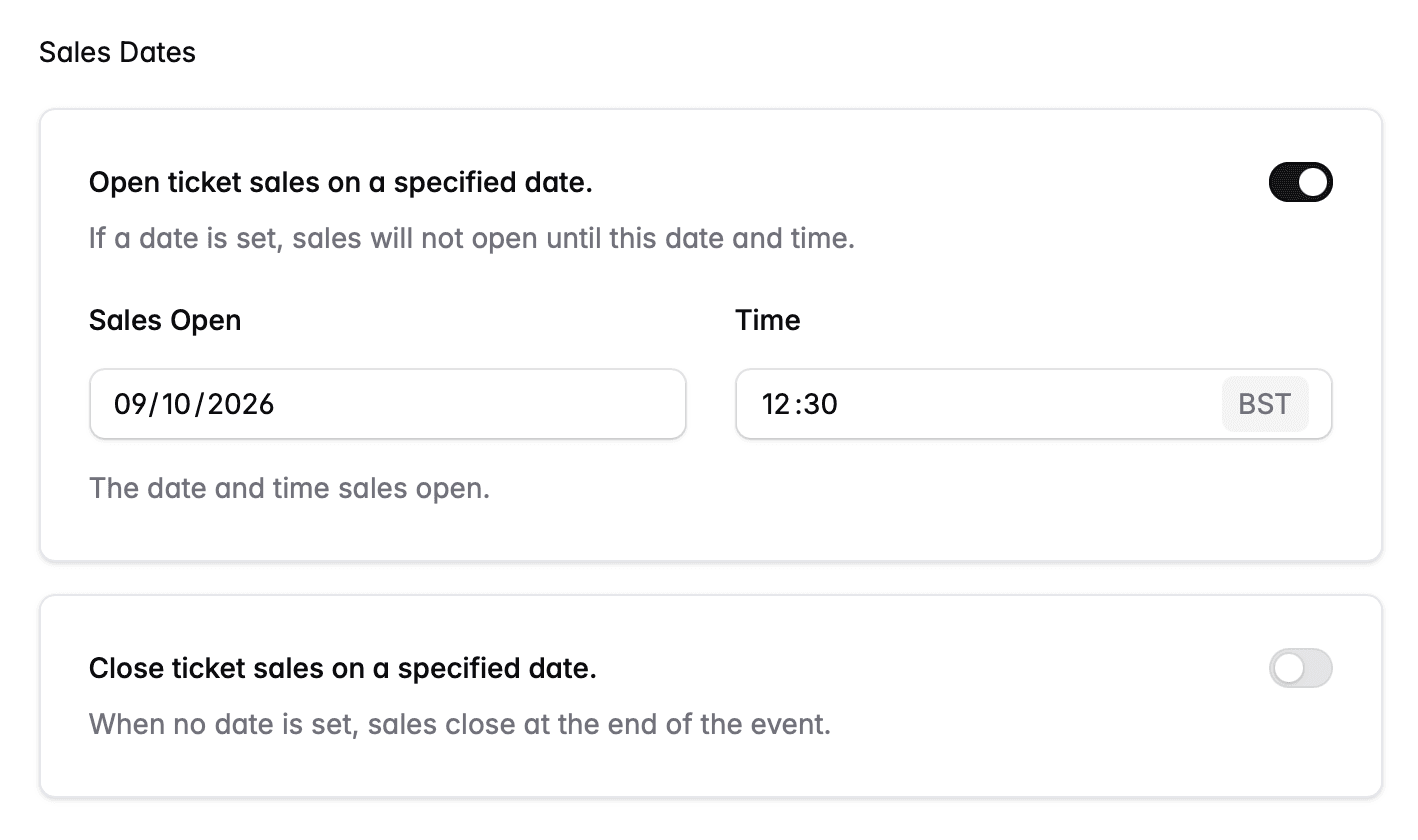
You can choose to set a date and time when sales open and/or close at your event.
If you do not choose a sales open date, sales will open as soon as you publish your event.
If you do not choose a sales close date, sales will close when the event finishes.
To set either, use the toggle to activate it, then choose a date and time:
Terms and Conditions
You can enable terms and conditions that will be shown to customers when registering for your event. Customers will be asked to confirm they accept the terms before completing their purchase.
Enable the toggle to turn this on.
Note that you will need to enter your terms and conditions on the Terms and Conditions settings page. When not editing a draft event, select Settings from the main navigation menu, then Terms and Conditions.
We currently do not support setting different terms and conditions per event. This will be supported soon.
Advanced Settings
The advanced settings box at the bottom of the form can be expanded to view additional options. These settings are not expected to be configured for most events, so normally you can proceed without changing them.
Prioritise Partner Bookings
Partner bookings are registrations that have an equal number of leads and follows.
When DanceCloud is automatically balancing lead/follow registrations, partner registrations will receive tickets even if there is a wait-list. This is because a partnership always improves the balance at the event, and can result in tickets being released to whichever role is wait-listed. This effectively means that partner bookings do not wait behind people already on the wait-list.
We recommend leaving this on for most events.
Turning it off means that partner registrations will get wait-listed behind people already waiting for tickets. Only turn this off if you are confident your event will sell out with a strong balance of both roles.
Published Events
You can change some of these settings after publishing your event.
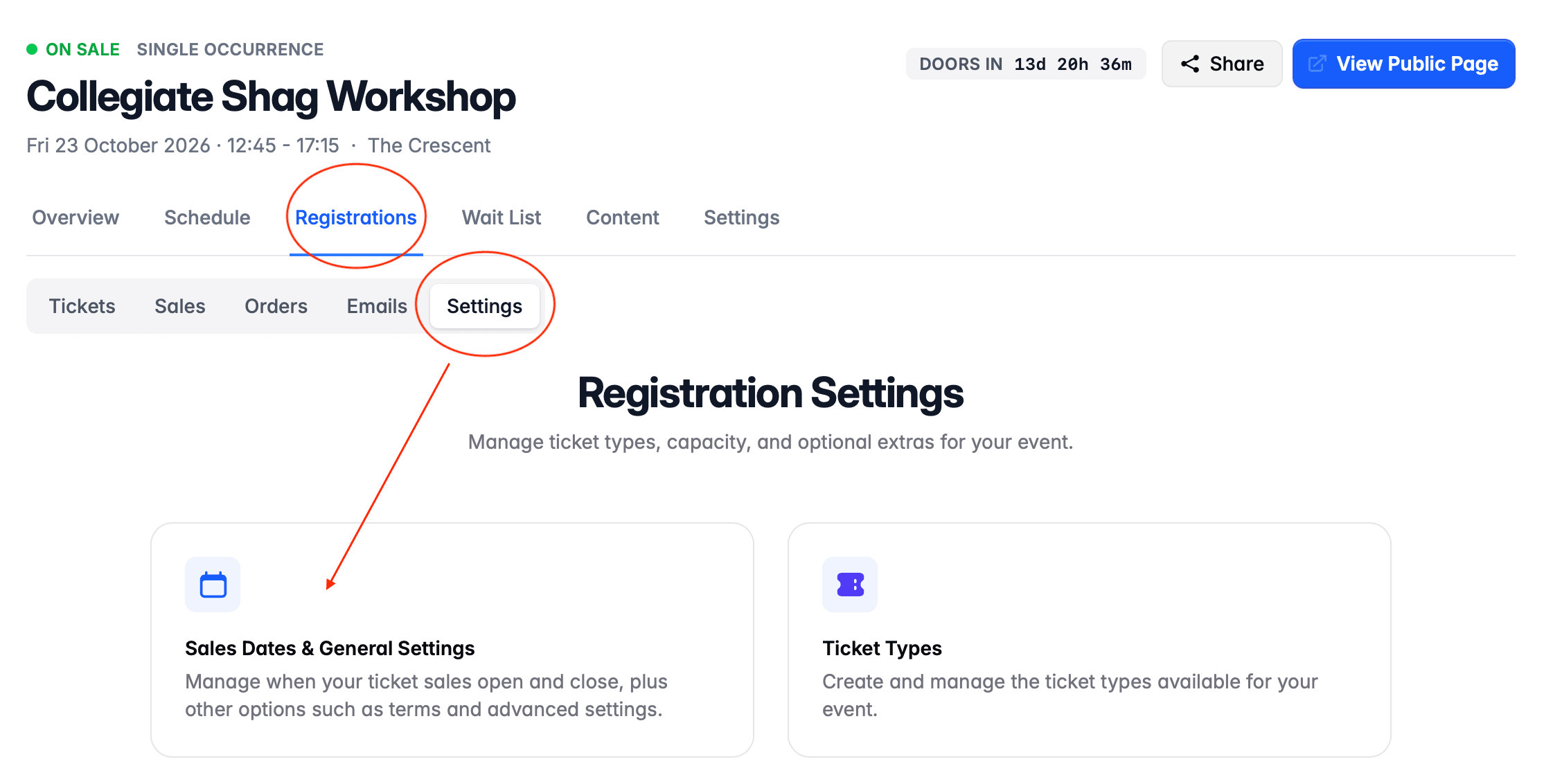
Select the Registrations page, then the Settings tab. Then choose the Sales Dates & General Settings option - as shown in the image below.
Note that some settings cannot be changed after publishing your event.